Thank you for reaching out! Please follow the steps below on how to add a custom message for anniversaries:
1. Go to the “Upcoming Anniversaries” tab under the “Work Anniversaries” section and click on the arrow icon.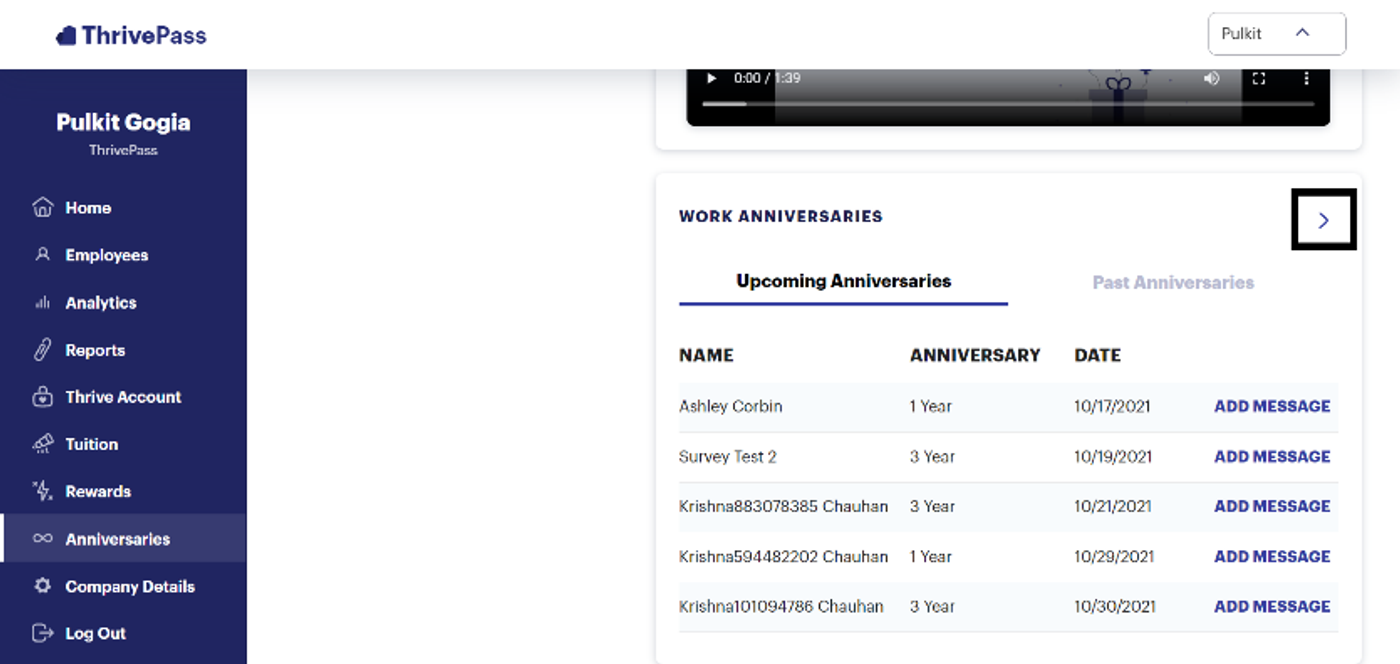
2. Click “ADD MESSAGE” for the employee receiving the customized message.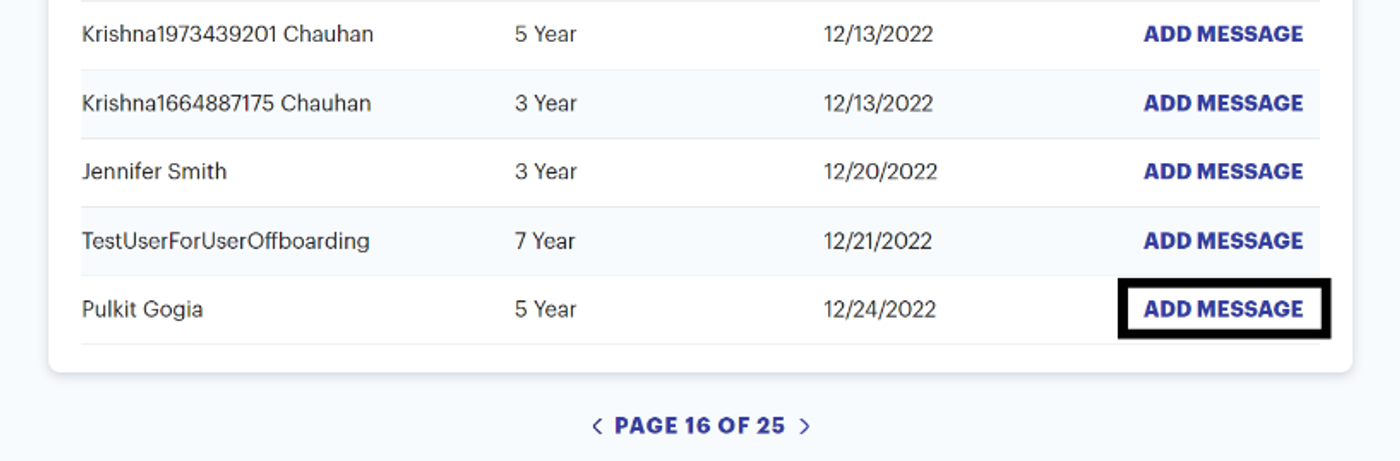
3. A new “Add Message” page will open.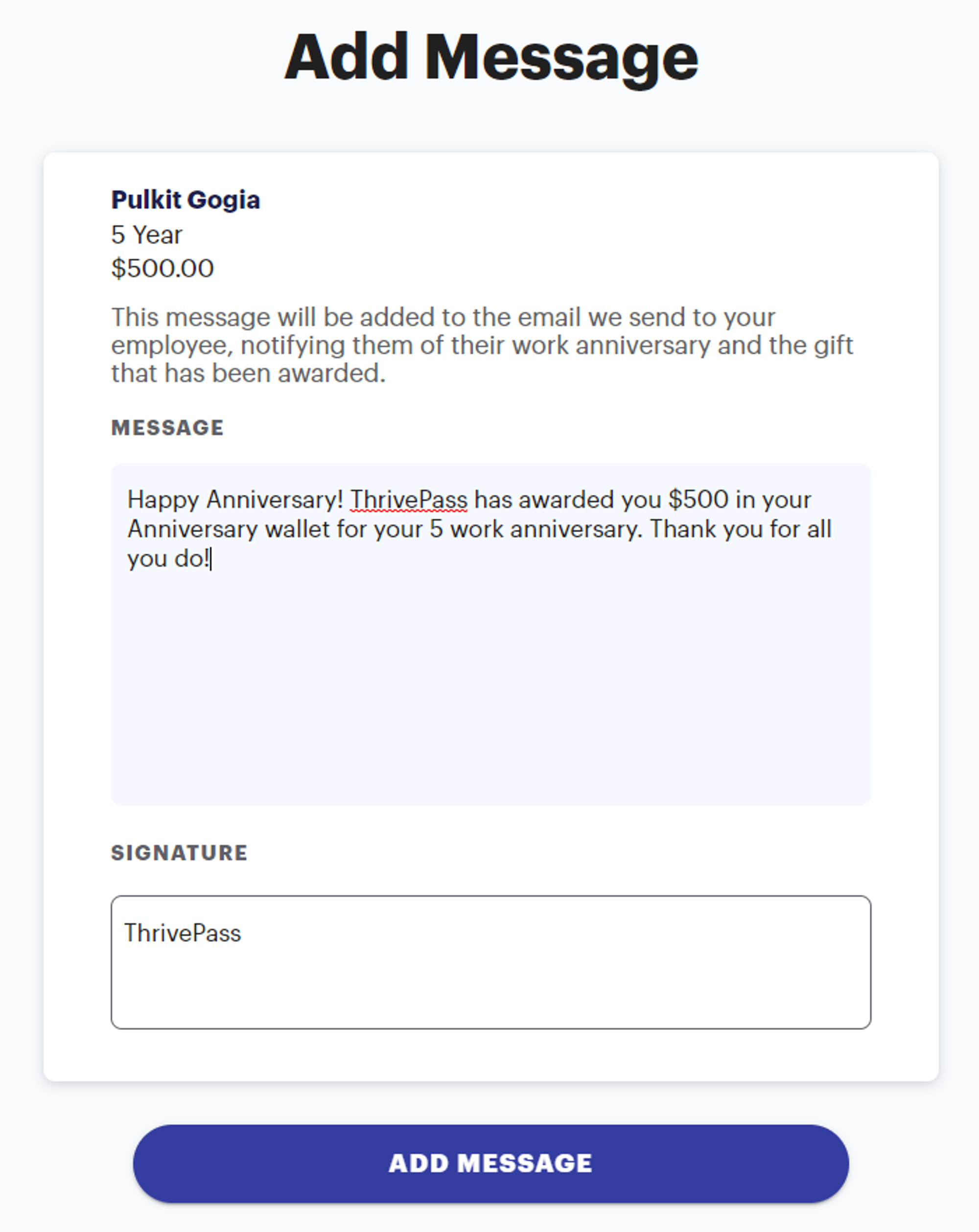
4. Enter the message and signature you want the employee to receive in the anniversary gift email.
5. Click “ADD MESSAGE”.
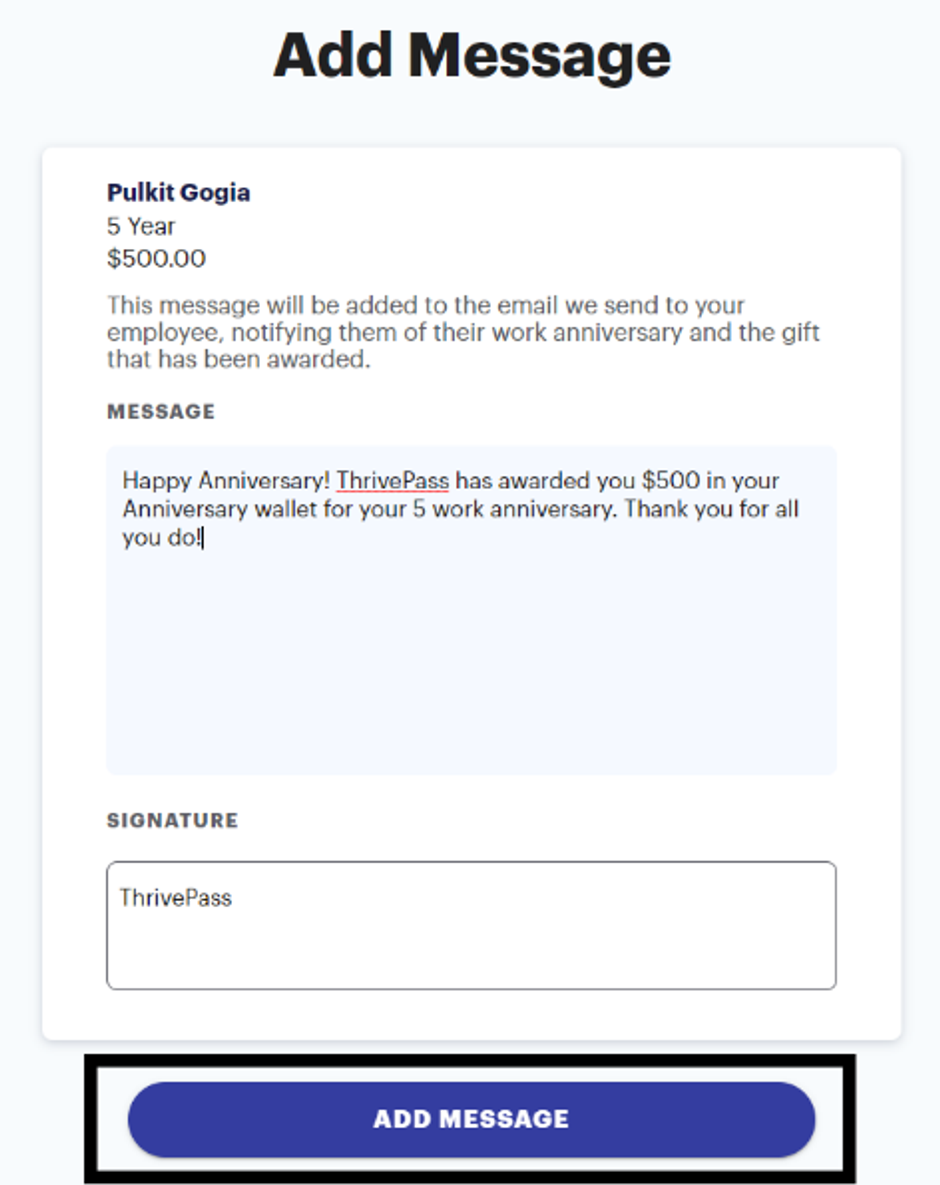
6. Finally, the message will be added to the email that will be sent to the user on his/her upcoming work anniversary.
6. Finally, the message will be added to the email that will be sent to the user on his/her upcoming work anniversary.
Was this article helpful?
That’s Great!
Thank you for your feedback
Sorry! We couldn't be helpful
Thank you for your feedback
Feedback sent
We appreciate your effort and will try to fix the article