When onboarding new employees, assigning the same permissions and settings individually can be time-consuming. Wishlist allows administrators to create default user settings that are automatically applied to all newly onboarded users.
Note: Default settings streamline the onboarding process, but individual user permissions can still be modified after the employee has been added to the platform.
Set Default User Roles
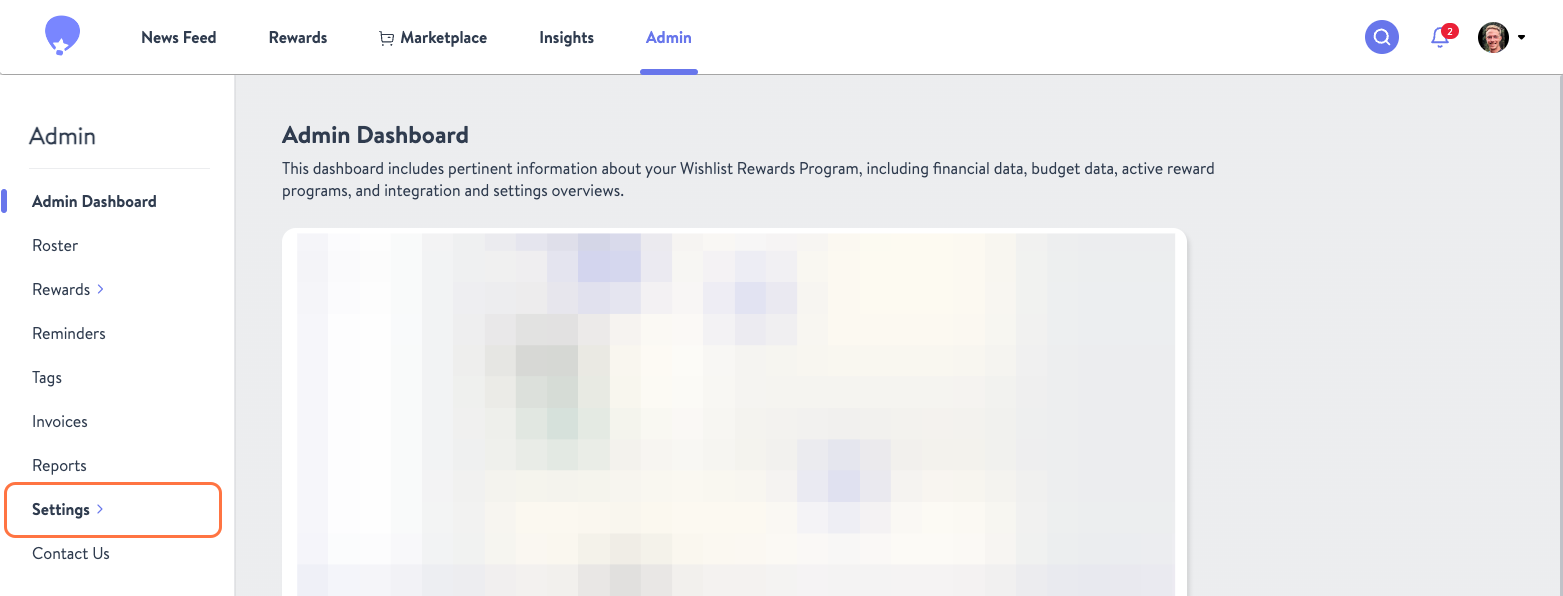
- Navigate to the Admin tab and select Settings.
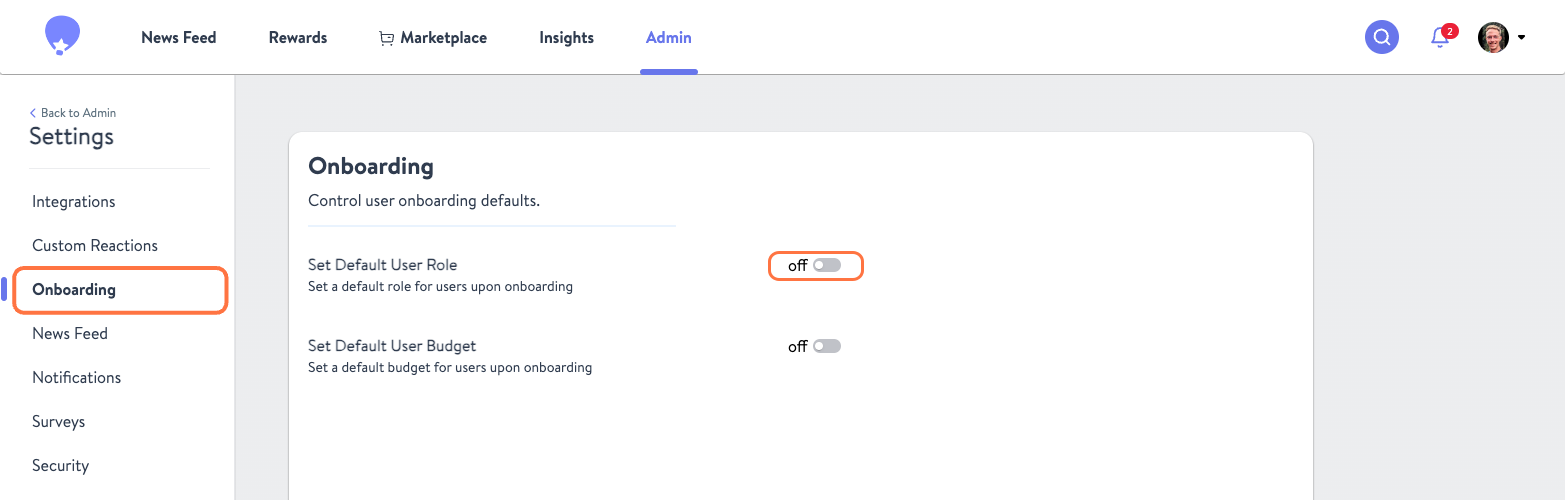
- Click Onboarding from the Settings menu.
- Enable the Set Default User Role toggle.
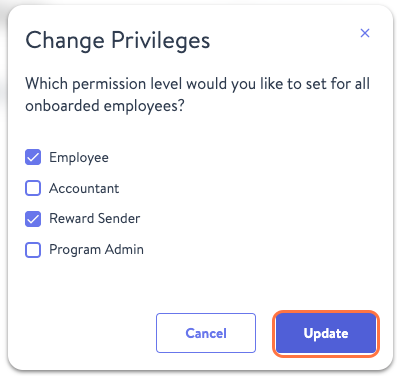
- In the pop-up window, select the roles and permissions that should be assigned to all newly onboarded employees.
- Click Update to save your changes.
Set a Default Reward Budget (Optional)
If any of the selected default permissions allow users to send rewards, you can also configure a default reward budget for new employees.
- Enable the Default Budget toggle.
- Configure the desired budget settings.
- Save your changes.
Managing Individual Permissions
While default settings apply to all new users, administrators can update individual employee permissions at any time after onboarding if their role requires different access or responsibilities.
Once configured, your default onboarding settings will automatically be applied to all future employees added to Wishlist.