Sending spot rewards is one of the core features of Wishlist. Depending on your program setup, you can send rewards in a few different ways:
- Bulk Rewards
- Individual Rewards
- Through a New or Existing Recognition
Sending Bulk Rewards
Bulk rewards allow you to send rewards to multiple recipients at once.
Steps:
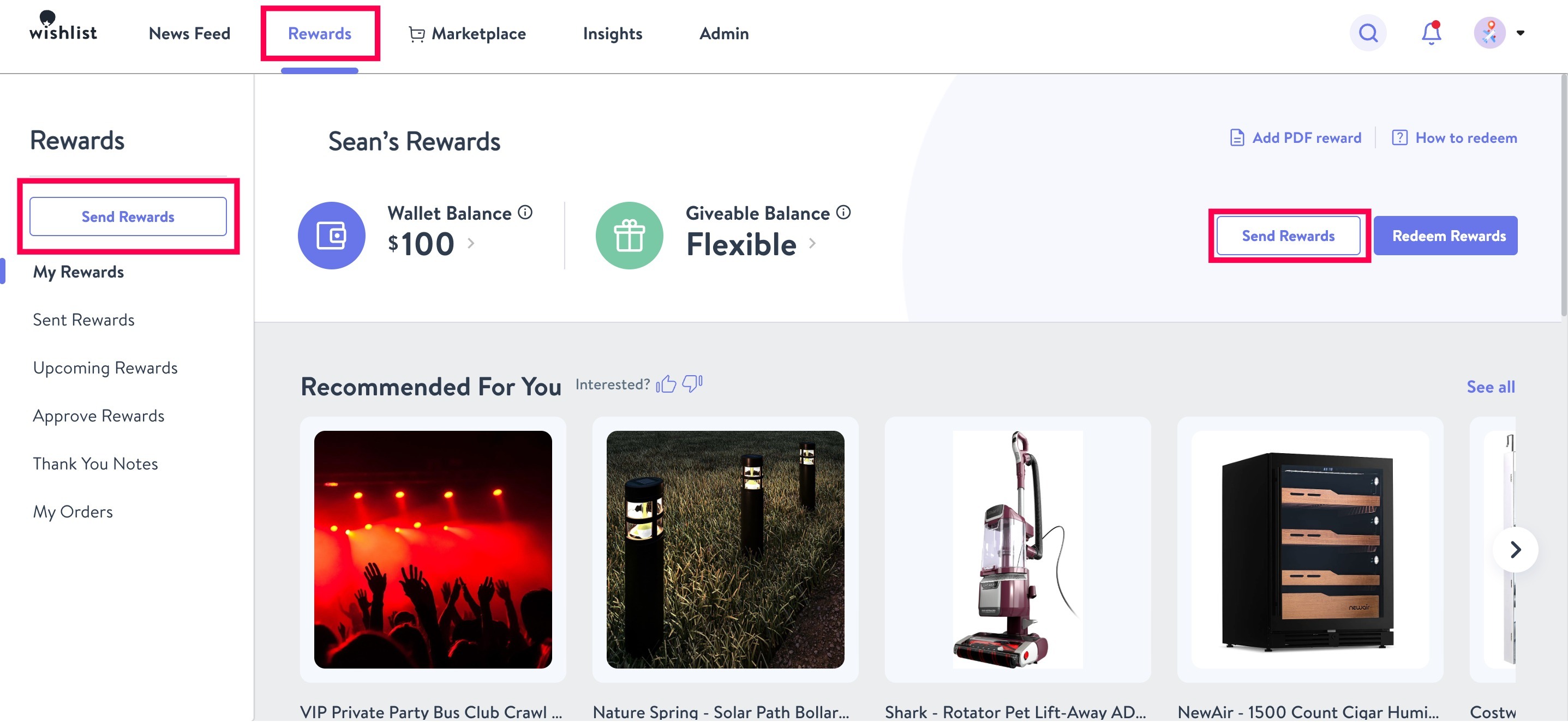
- Navigate to the Rewards page
- Click Send Rewards
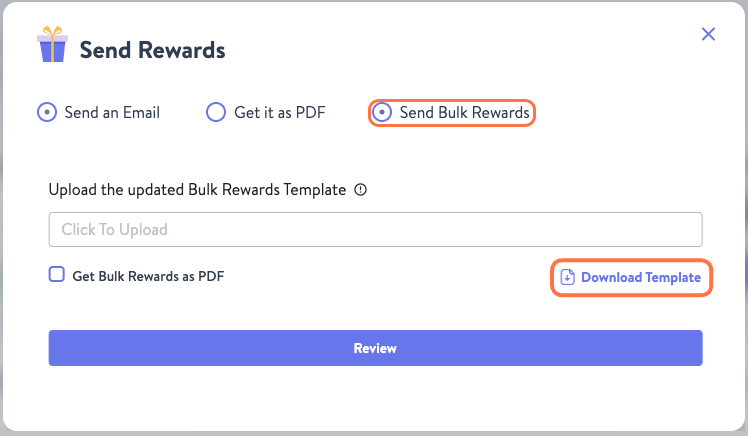
- Select Send Bulk Rewards
- Click Download Template
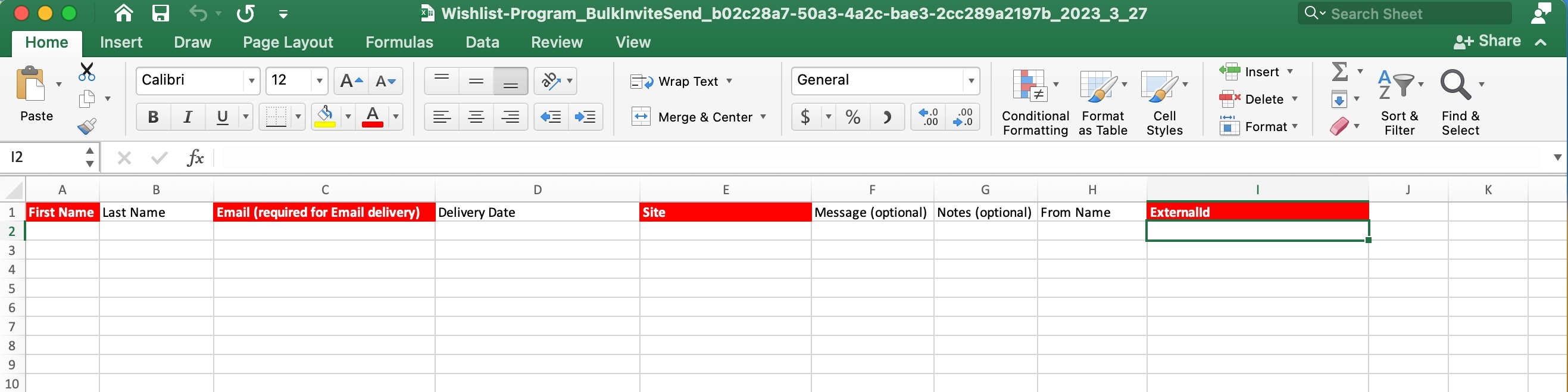
Fill out the template:
- Fields marked in red are required
- Optional fields let you:
- Customize messages
- Set a delivery date
- Change the sender
- Add internal notes
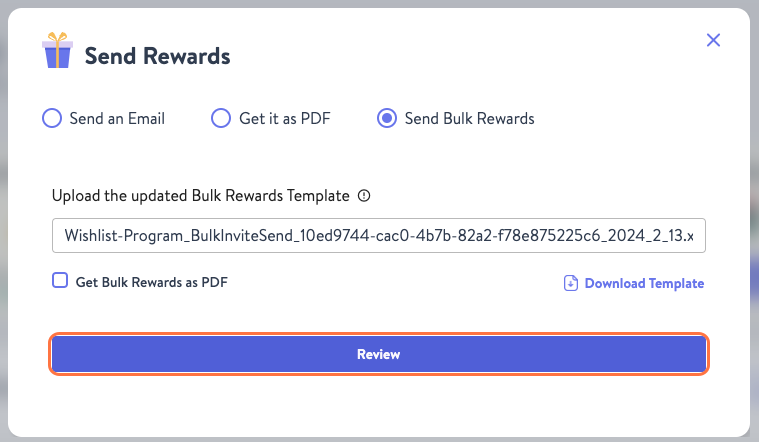
- Upload the completed file
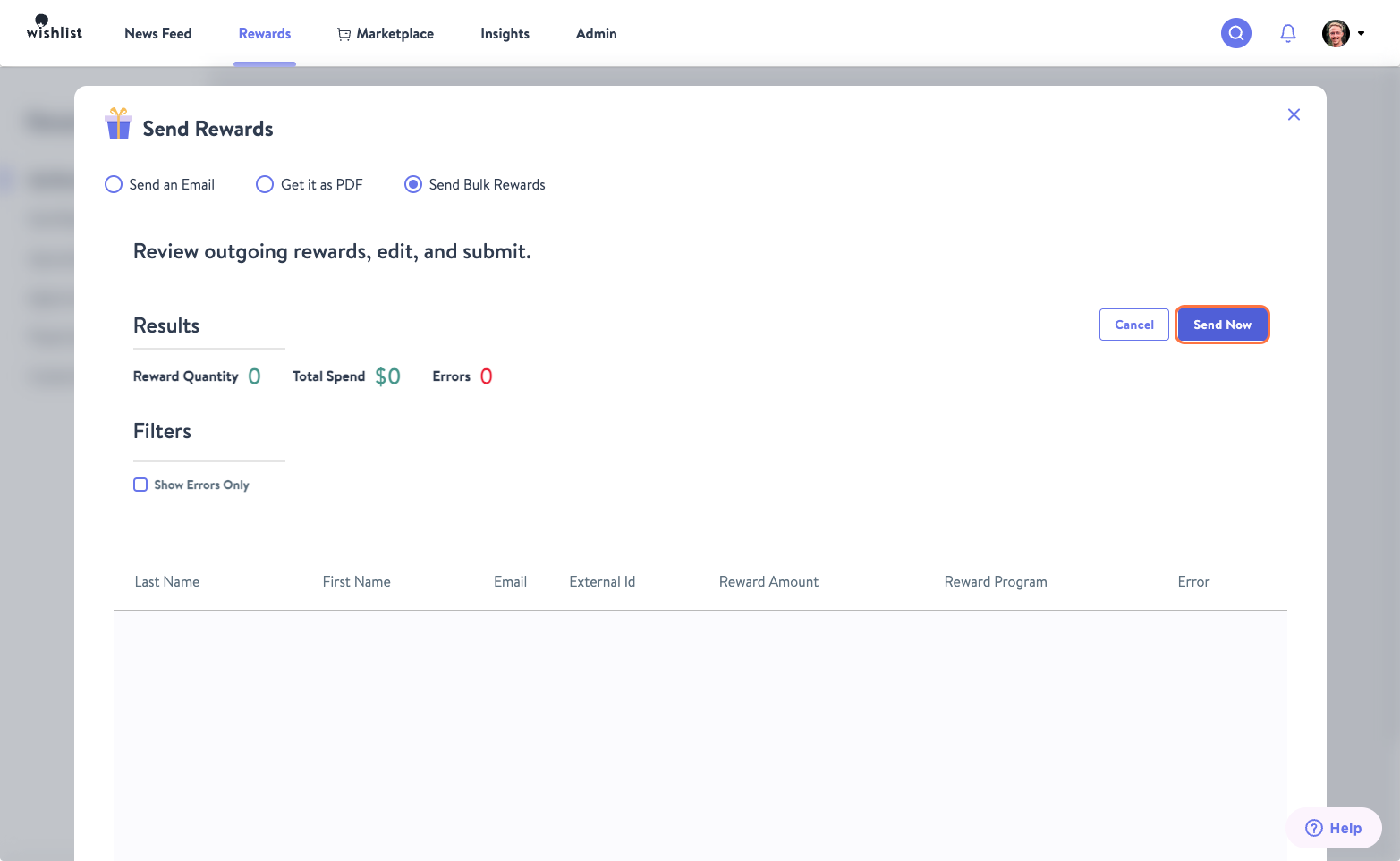
- Click Review to check for errors
- Once everything looks correct, click Send Now
Sending Individual Rewards
You can send rewards to one or more individuals depending on your setup. Wishlist supports two configurations:- Preset Rewarding (select from predefined reward amounts/programs)
- Open Rewarding (enter a custom amount within your budget)
Go to the Rewards page and click Send Rewards
Choose delivery method:
- Send via Email
- Download as PDF
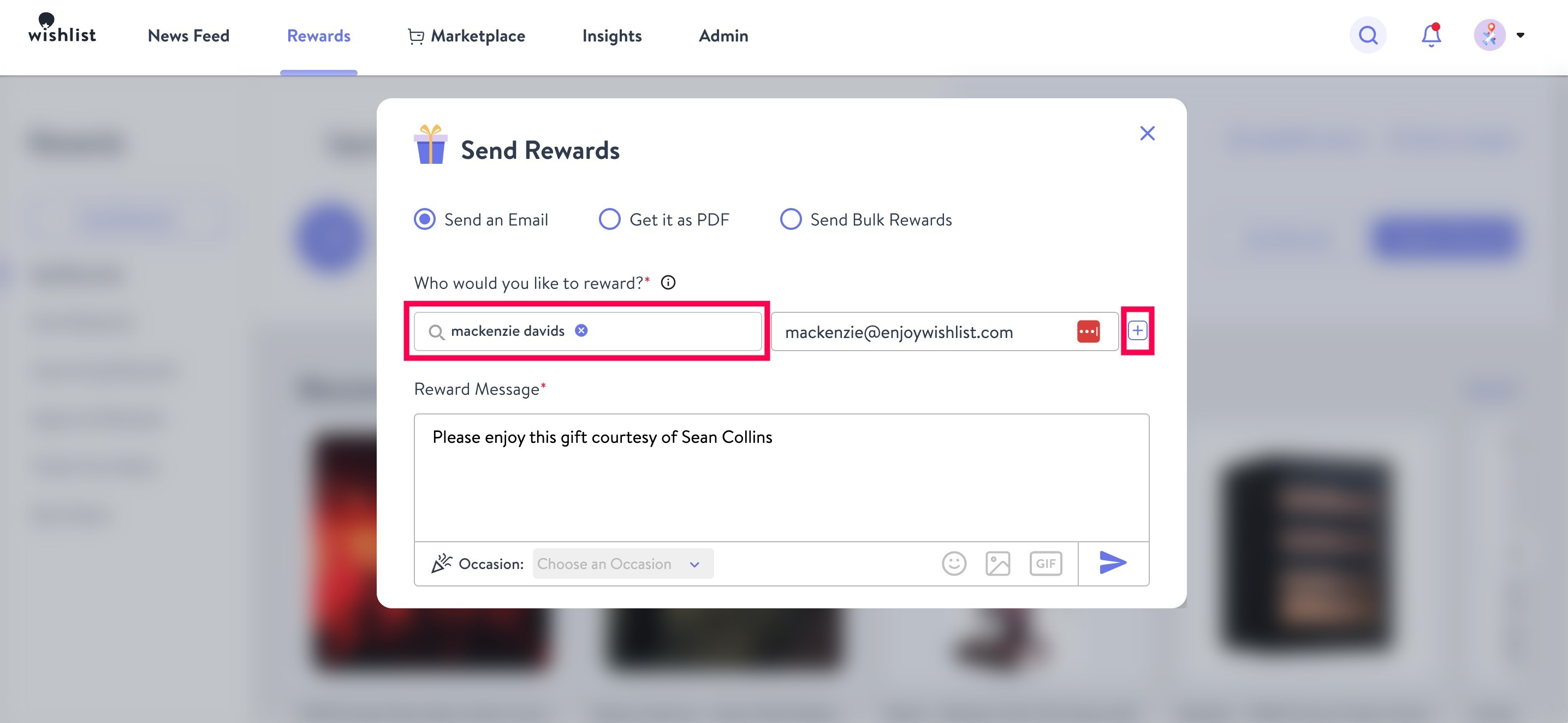
Enter the recipient’s name and select them from the dropdown
- Their email will auto-fill
- To add more recipients, click the “+” icon
Customize your message or use the default
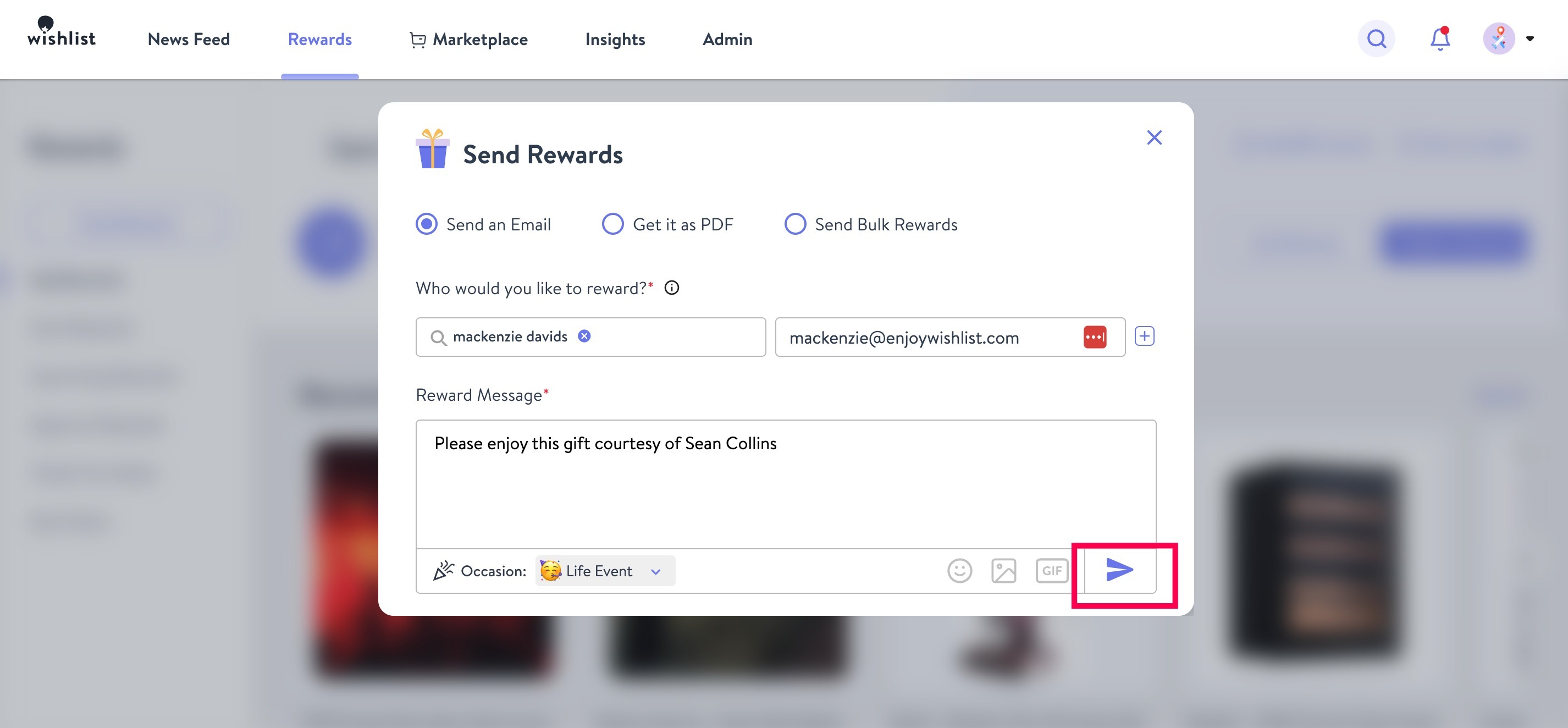
(Optional) Select an Occasion
Click the paper airplane icon to continue
Choosing the Reward
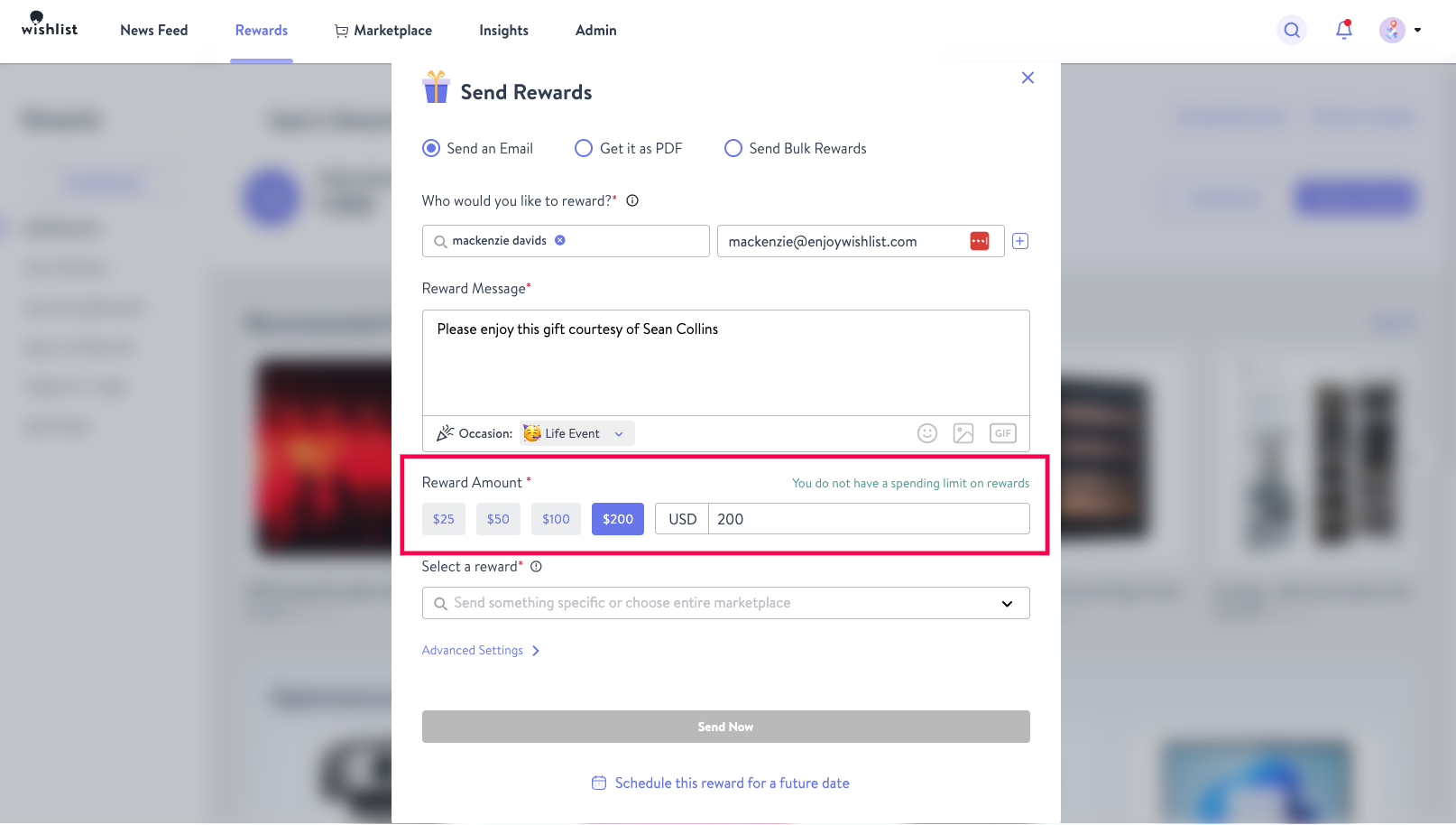
Based on your configuration, you can:Select a preset reward amount or program
- Enter a custom reward amount (Open Rewarding)
- Choose a specific reward site or experience
- A specific category (e.g., swag only)
- Full marketplace access
- A curated custom collection (e.g., branded items)
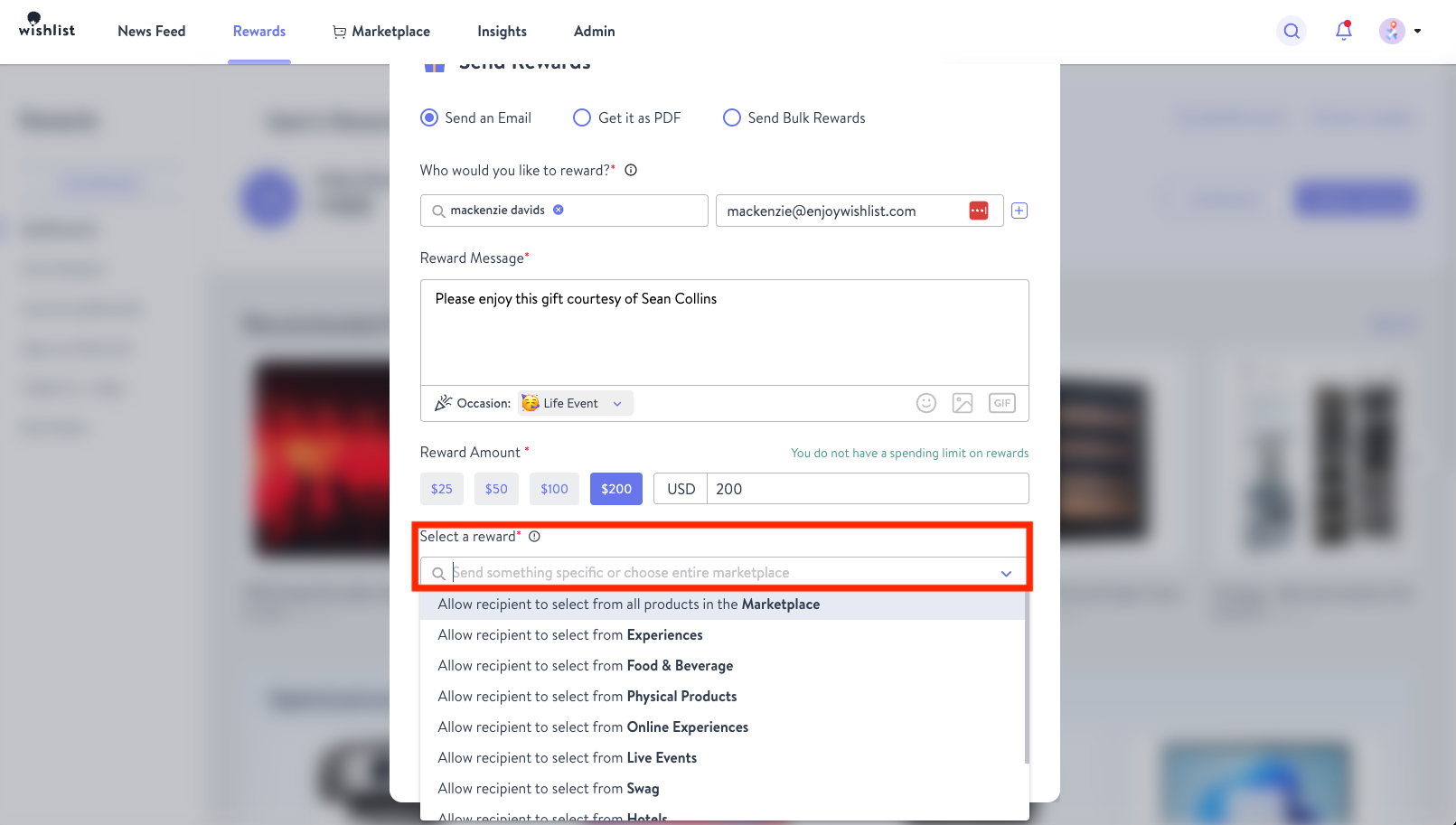
Advanced Settings (Optional)
Before sending, you can click Advanced Settings to:
- Add Reward Tags / Business Goals
- Include an External ID or Internal Notes
- Schedule the reward for a future date
Note: If scheduling a reward, you must still click Send Reward to finalize it.
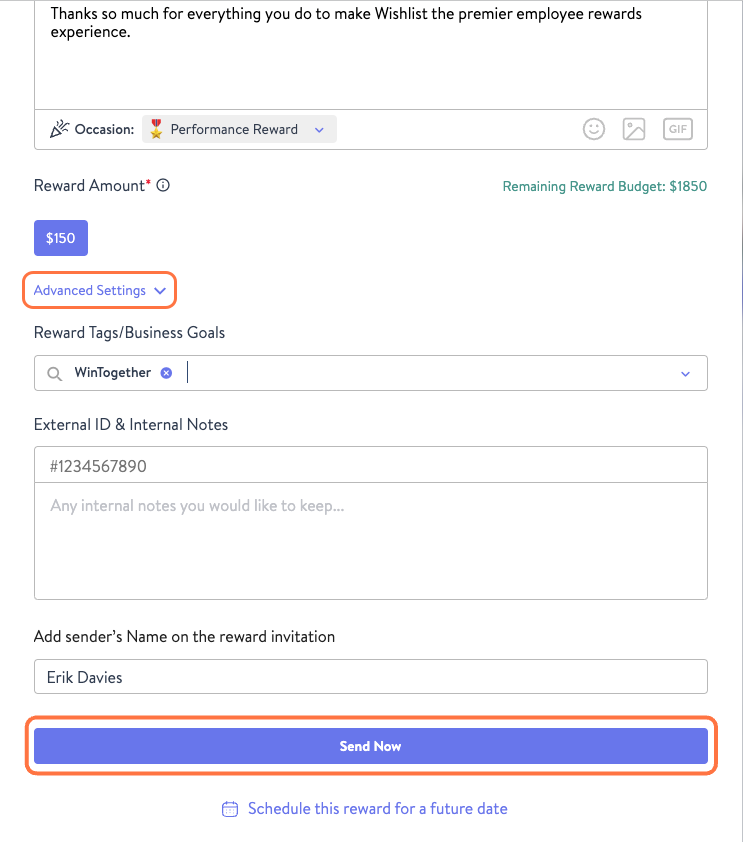
Final Step
Once everything is set:
- Click Send Reward to complete the process
This flexibility allows you to recognize employees instantly or plan ahead—whether you're rewarding one person or an entire team.
Was this article helpful?
That’s Great!
Thank you for your feedback
Sorry! We couldn't be helpful
Thank you for your feedback
Feedback sent
We appreciate your effort and will try to fix the article