Log In to Your ThrivePass Client Support Account
If you have emailed ThrivePass Support before, you already have access to our Client Support portal. This guide walks you through how to log in, reset your password if needed, and submit a support ticket so our team can help you faster.
Step 1: Go to the Client Support Login Page
Open your browser and navigate to: client.thrivepass.com
This is your starting point for managing support requests and tracking ticket status.
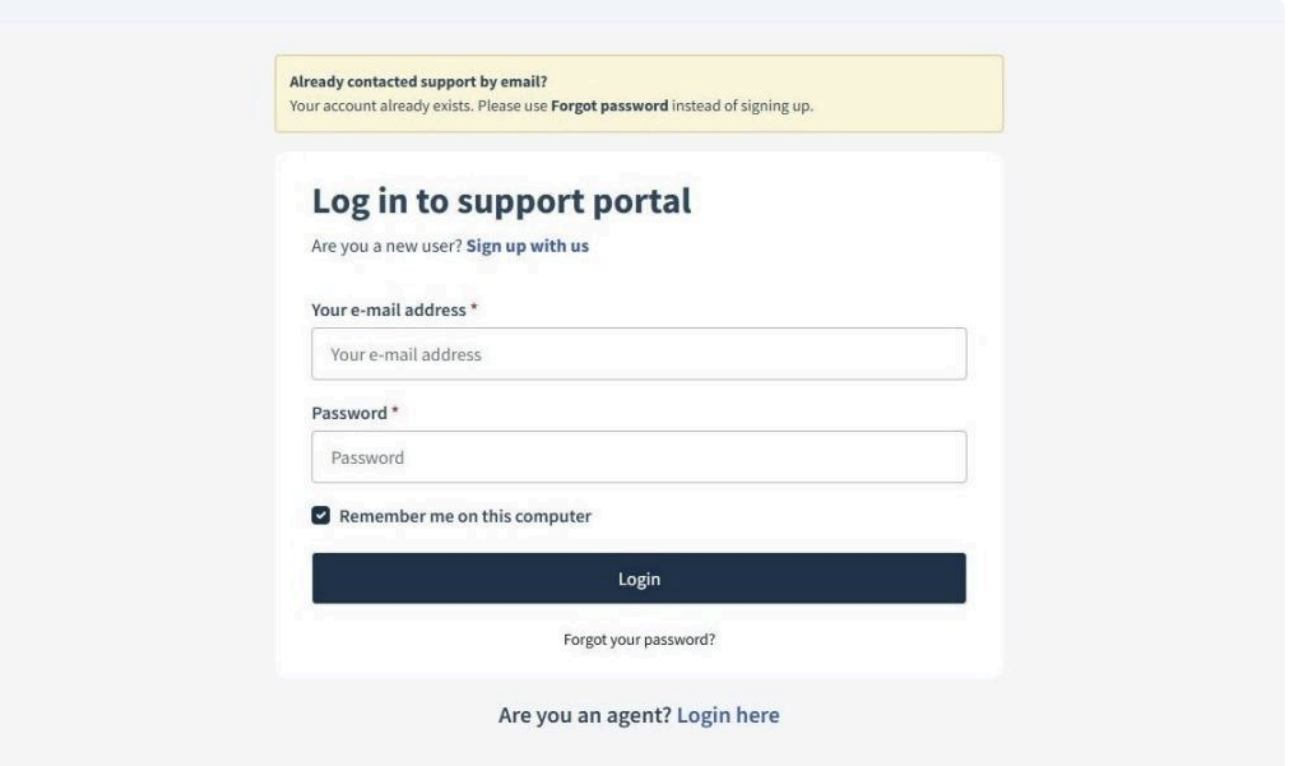
Step 2: Reset Your Password
On the login screen, select Forgot your password?
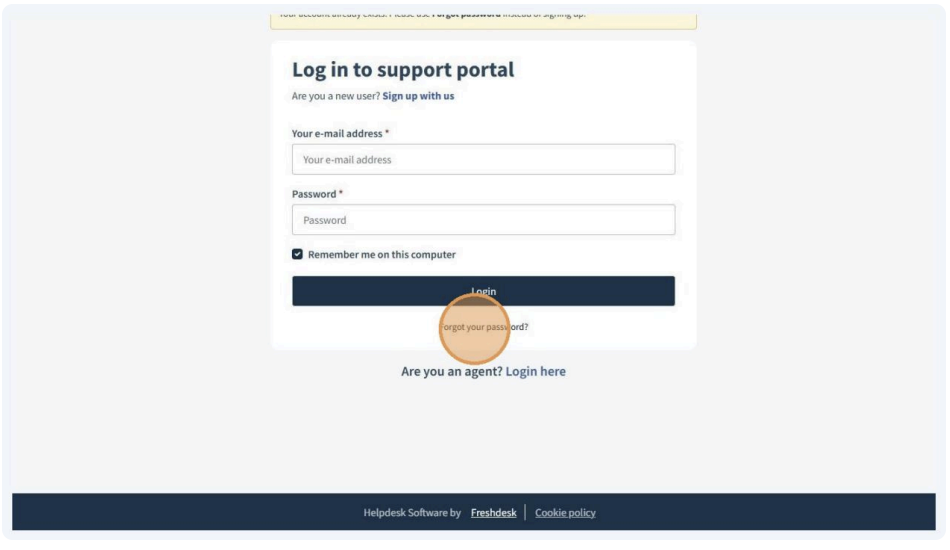
Enter the email address you previously used to contact ThrivePass Support, then click Reset password.
Step 3: Check Your Email
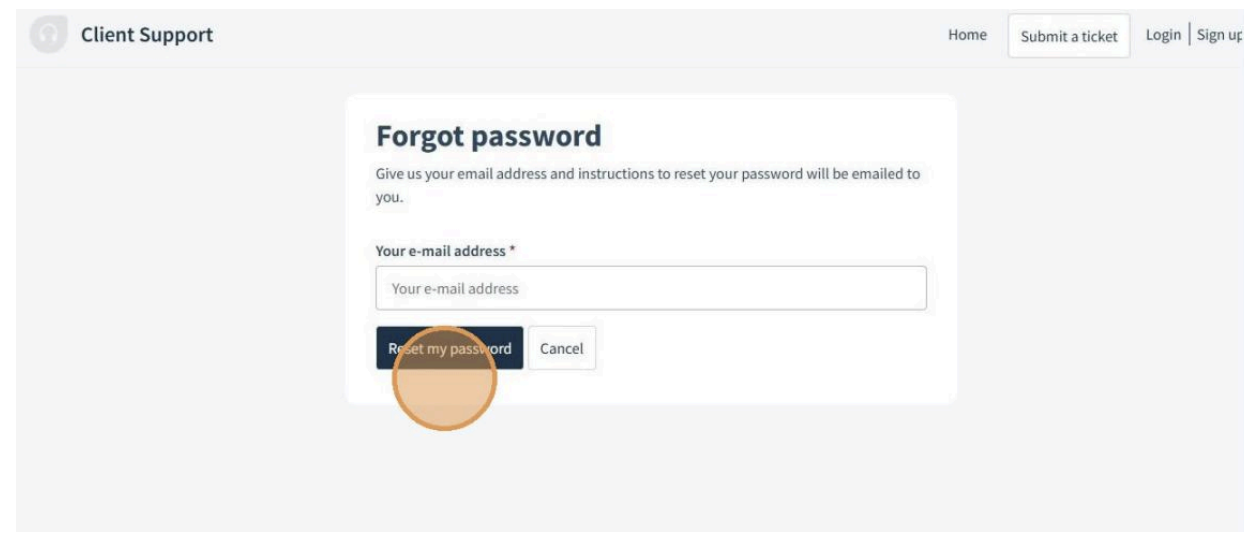
Look for an email from ThrivePass Client Support.
Open the message and select the link to reset your password. This link is secure and will guide you through setting up access.
Step 4: Create Your New Password
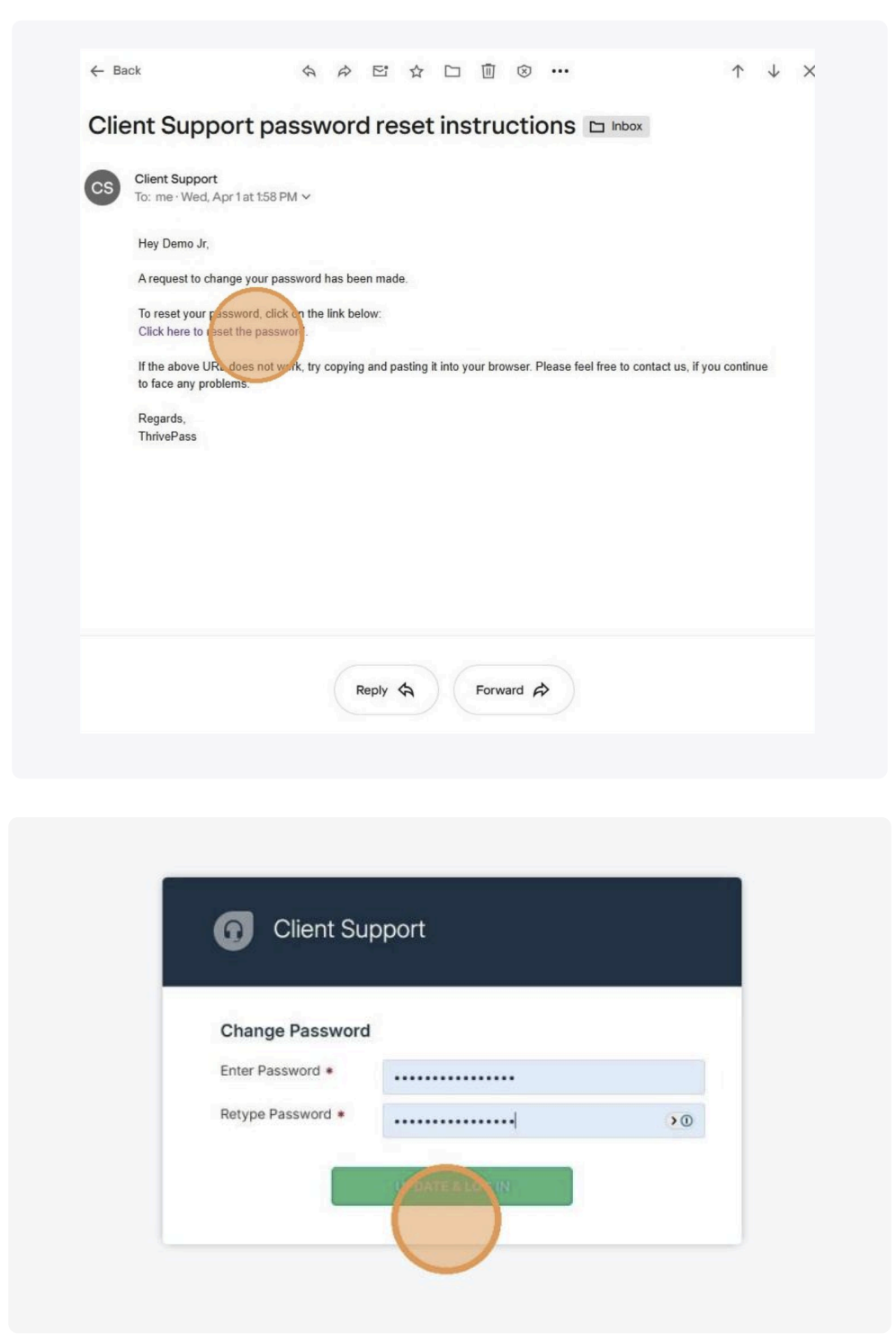
Enter a new password, then confirm it when prompted.
Select Update & Log In to complete the process and access your account.
Step 5: Submit a Support Ticket
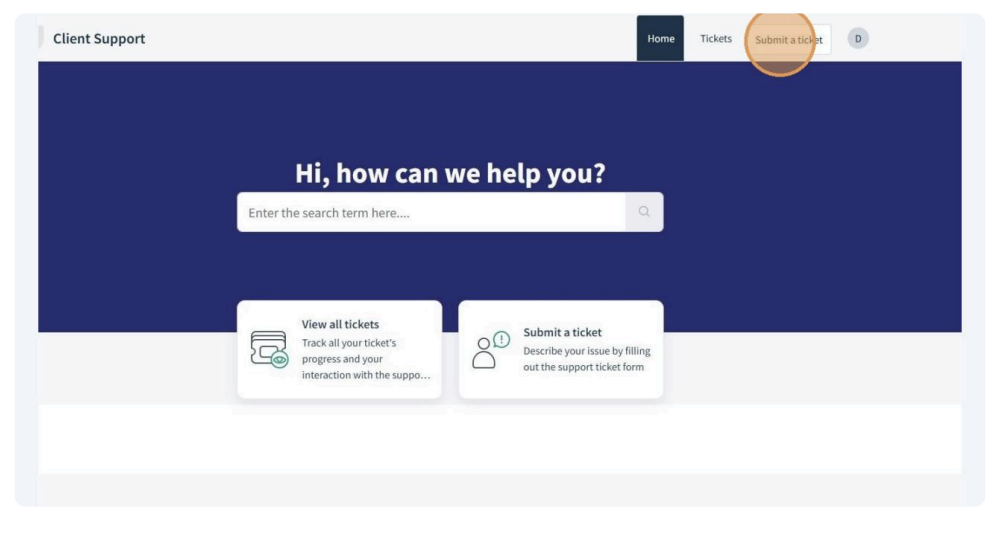
Once you are logged in, you will land on the home page.
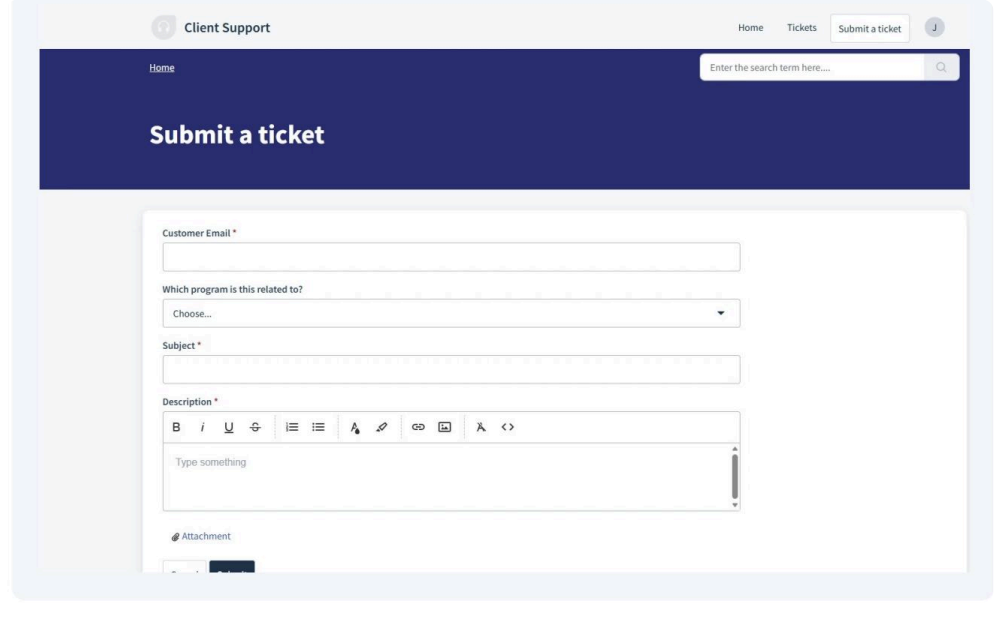
Select Submit a ticket to create a new support request. Choose the options that best match your question from the dropdown menus so your request reaches the right team.
Step 6: Share the Details
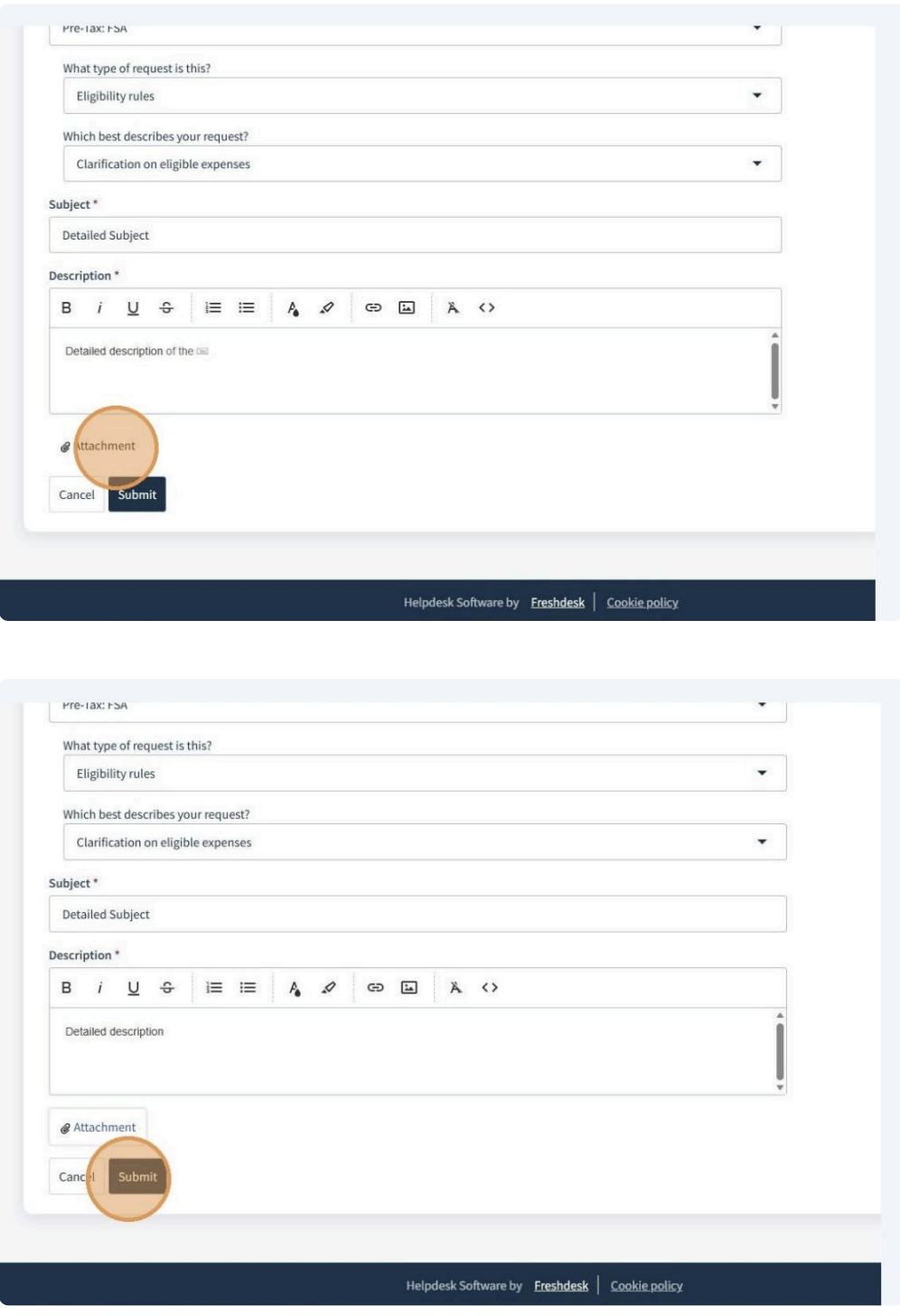
Add a clear subject line and provide a detailed description of your question or issue.
Attach any relevant files or documentation that may help us resolve your request more quickly. When you are ready, select Submit.
Step 7: Track Your Tickets
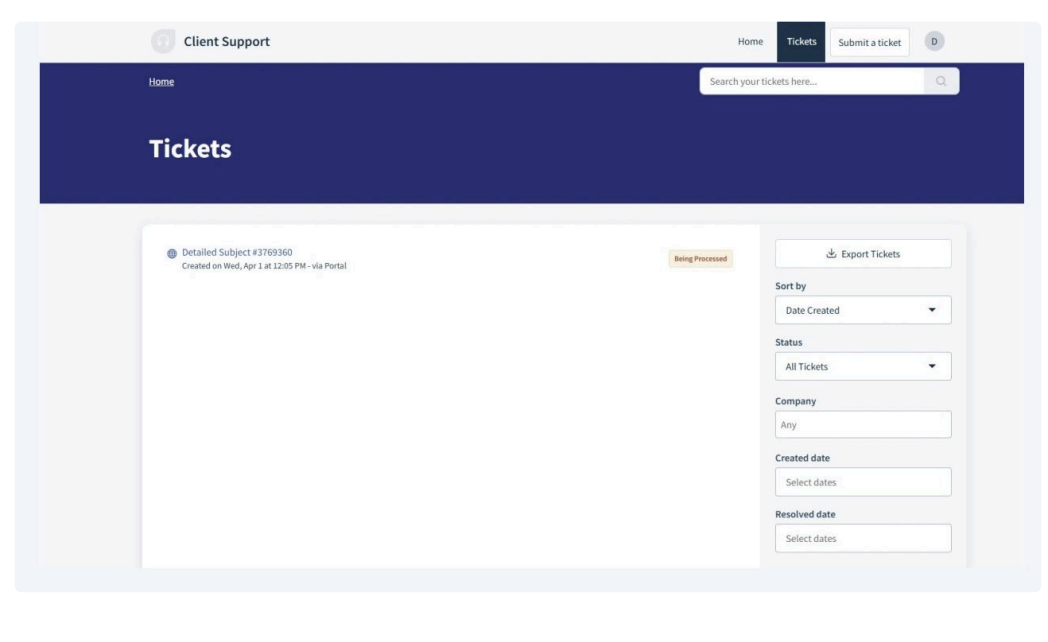
At any time, you can return to the home page and select Tickets to view the status of your submitted requests.
This gives you visibility into updates, responses, and resolution progress, all in one place.
Was this article helpful?
That’s Great!
Thank you for your feedback
Sorry! We couldn't be helpful
Thank you for your feedback
Feedback sent
We appreciate your effort and will try to fix the article