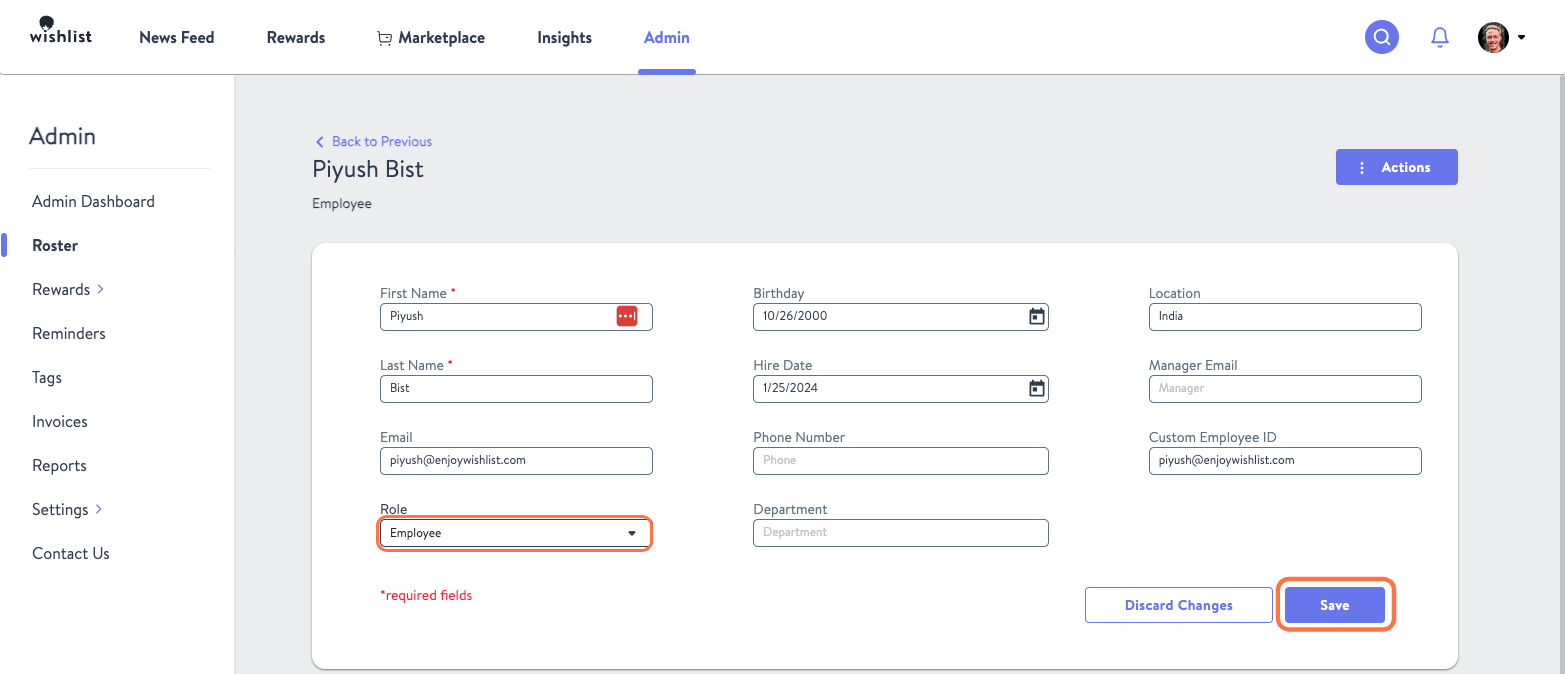
If your organization does not use an HRIS integration or SFTP file for roster updates, you can manually edit employee information directly within the platform.
Edit Employee Information
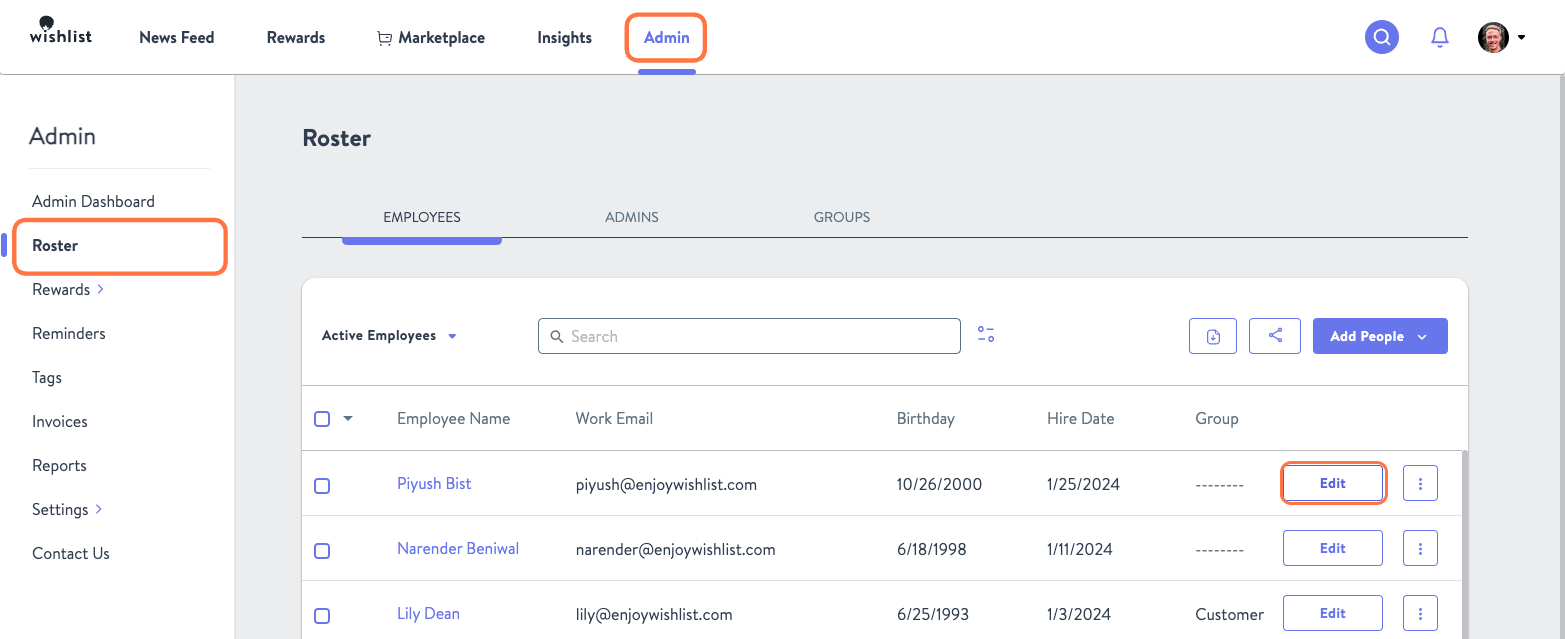
- Navigate to Admin and select Roster from the left-hand menu.
- Locate the employee you would like to update.
- You can make edits in one of two ways:
- Inline Editing: Click the pencil icon next to editable fields to make quick updates directly from the roster page.
- Edit Employee Profile: Click the Edit button to access additional employee details and settings.
Update Employee Details and Permissions
When you select Edit, you will be taken to the employee's profile page, where you can update additional information, including:
- Employee details and account information
- User roles and permissions
- Administrative access
To grant or remove Admin privileges, update the employee’s role on this page.
Important: Be sure to click Save after making any changes. Unsaved updates will not be applied.