If your organization does not use an HRIS integration, you can add new users directly through the Roster section in Wishlist.
Note: If your account is connected to an HRIS integration, all employee records must be created and managed within your HRIS. Changes made in the HRIS will automatically sync to Wishlist.
For adding or updating multiple users at once, refer to How to Make Bulk Changes to Your Roster.
Add a User Through the Roster
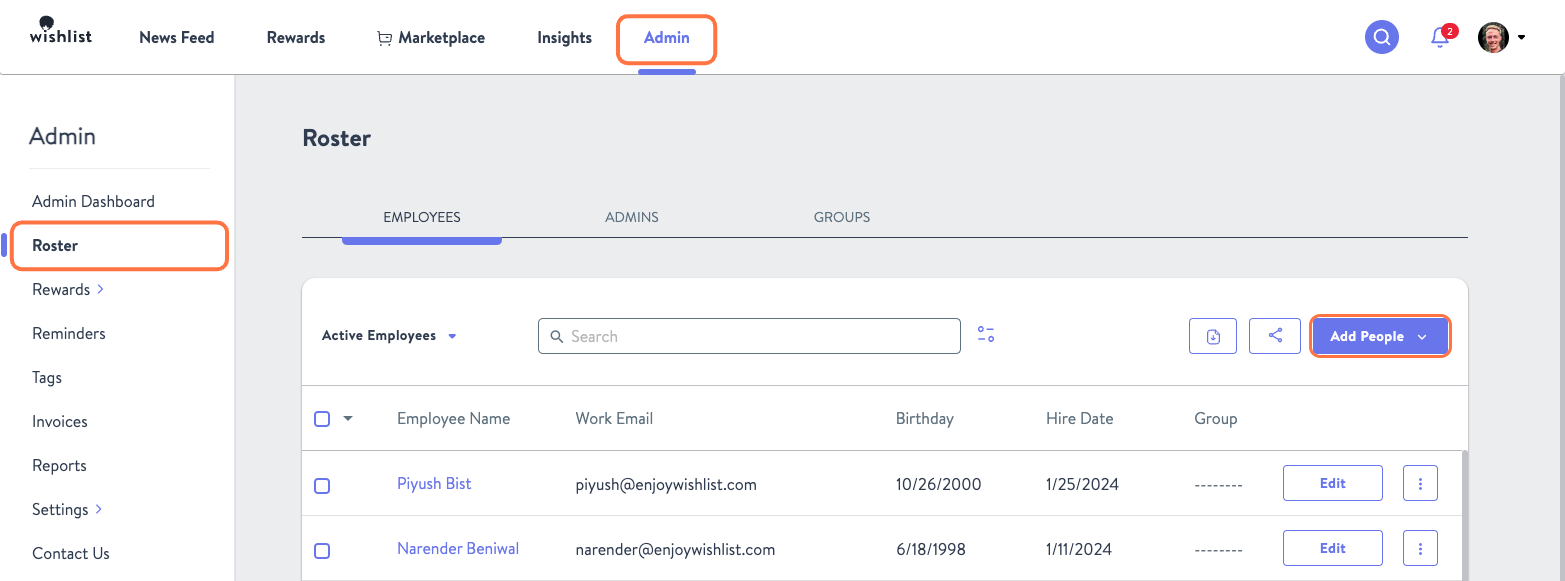
- Navigate to the Admin tab and select Roster.
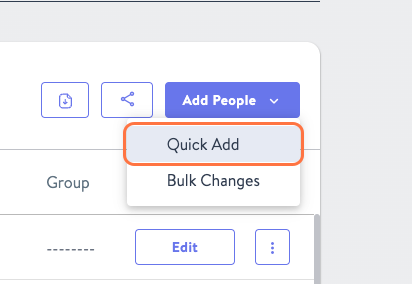
- Click Add People.
- Select Quick Add.
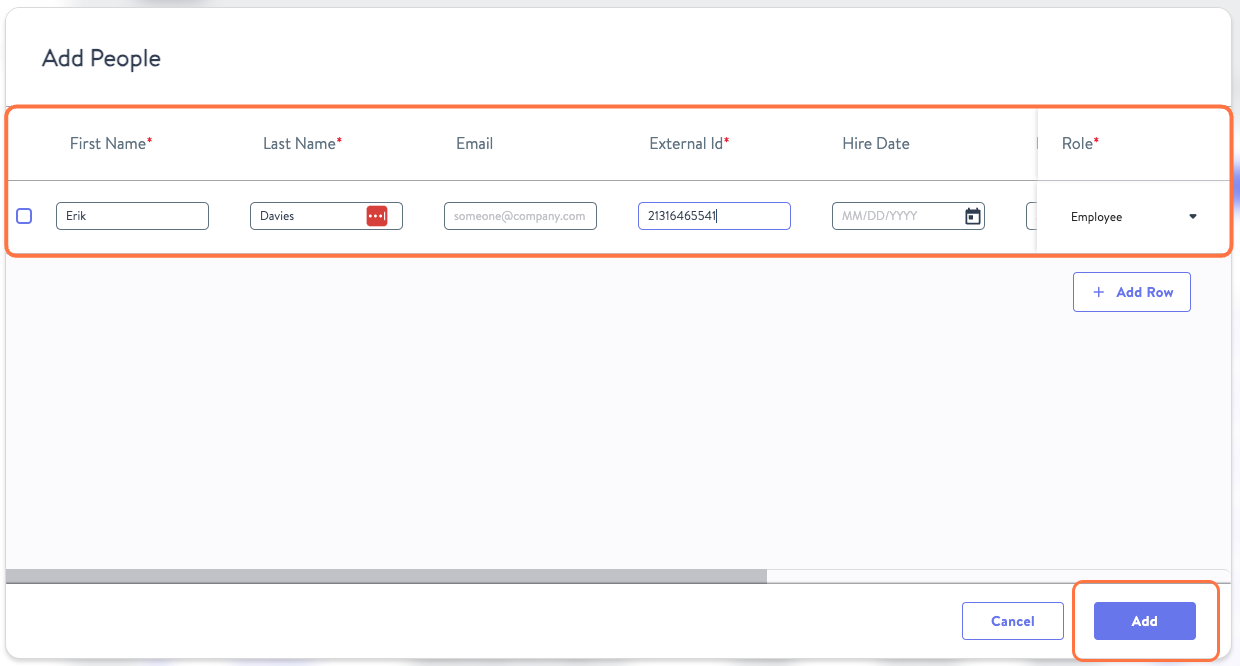
- Enter the employee's information.
Required Fields
The following fields are required to create a new user:
- First Name
- Last Name
- Email Address
- External ID
Additional Information
If your company uses:
- Anniversary Programs – Enter the employee's Hire Date
- Birthday Programs – Enter the employee's Birthday
Assign a Role
Select the appropriate role for the employee.
To allow a user to send rewards, they must be assigned either the Reward Sender or Program Admin role.
- Once all required information has been entered, click Add.
The new user has now been successfully added to your Wishlist account.