Administrators can update a user's permissions at any time to ensure they have the appropriate level of access within Wishlist.
Update a User's Permissions
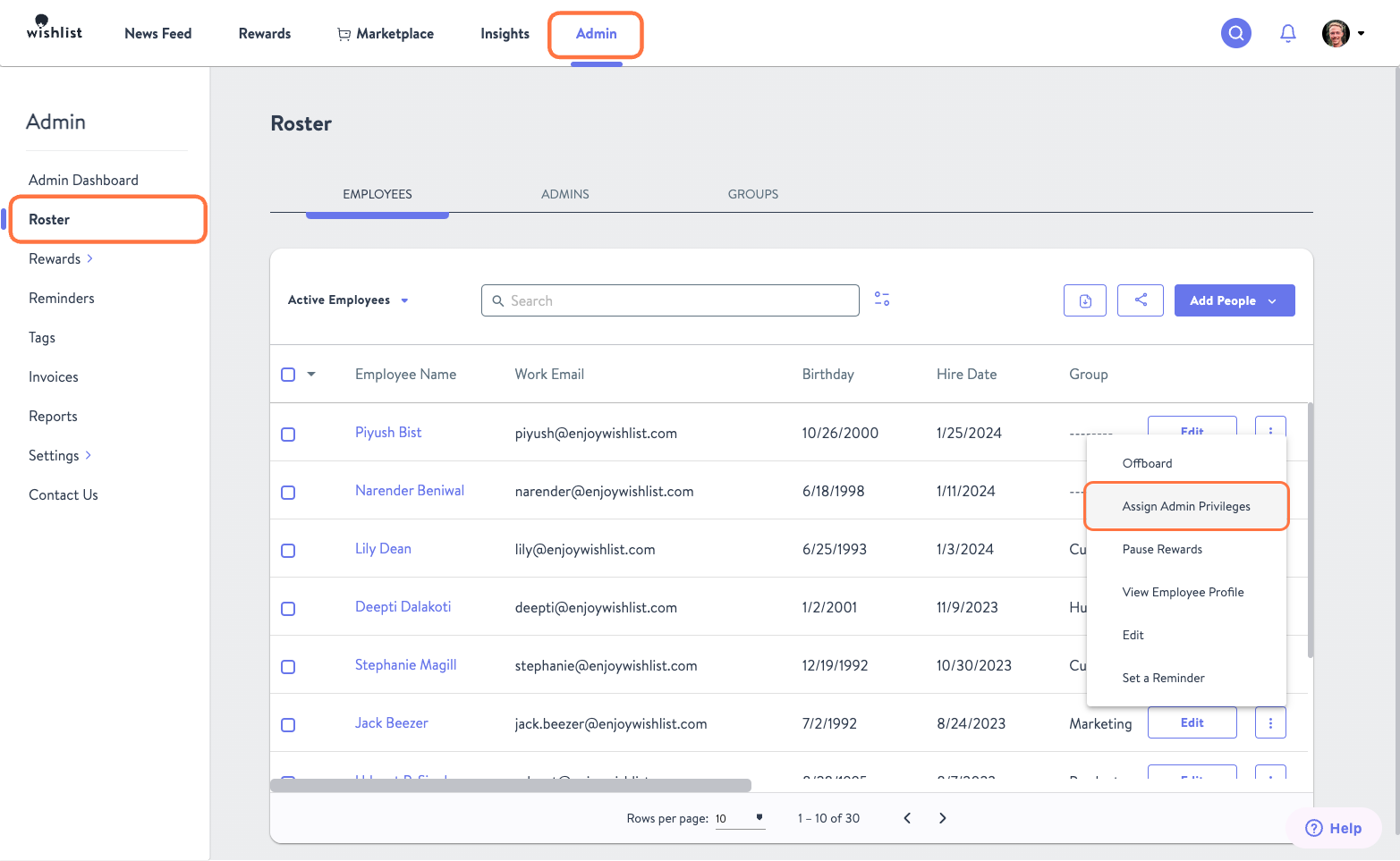
- Navigate to the Admin tab and select Roster.
- Locate the user whose permissions you would like to update.
- Open the Kebab Menu (⋮) next to the user's name.
- Select Assign Admin Privileges.
Select User Roles
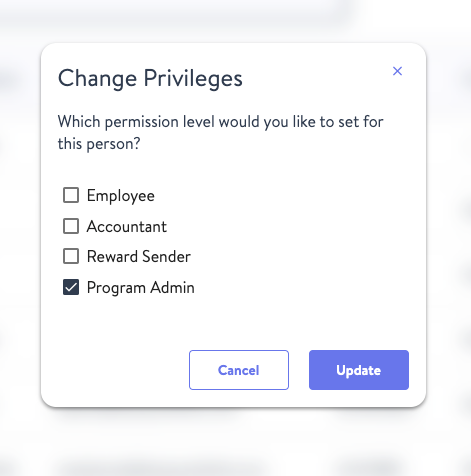
- Choose the role(s) you would like to assign to the user.
- Users can be assigned multiple roles if additional access is required.
- Save your changes.
✅ The user's permissions will be updated immediately.
Note: Different roles provide different levels of access throughout the platform. Review your organization's role definitions to ensure users have the permissions appropriate for their responsibilities.