Please follow along for an explanation on your Tuition Admin Dashboard.
1. Login to your Thrive Account.
2. Click on Admin Tools on lefthand side.
3. Click on Educational tab on lefthand side.
4. This will open your Tuition Admin dashboard
5. If applicable, select the location you wish to view on the top drop down menu
Enrollments Tab
This is the default tab, where you can view all enrollment-related items. You can filter enrollments by type or status, including those pending approval and those awaiting your action. Enrollments can also be sorted alphabetically, by completion date, or by submission date. Use the search bar to quickly find specific employee requests.
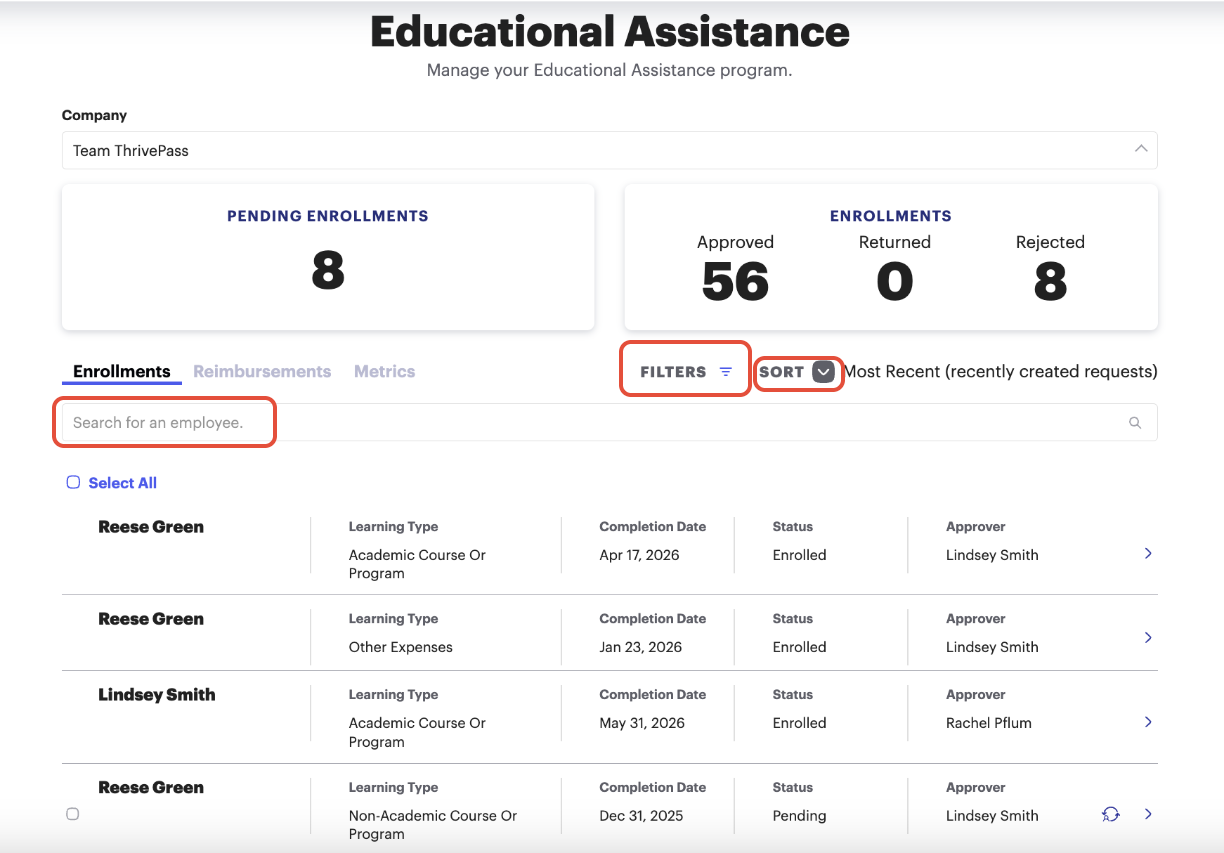
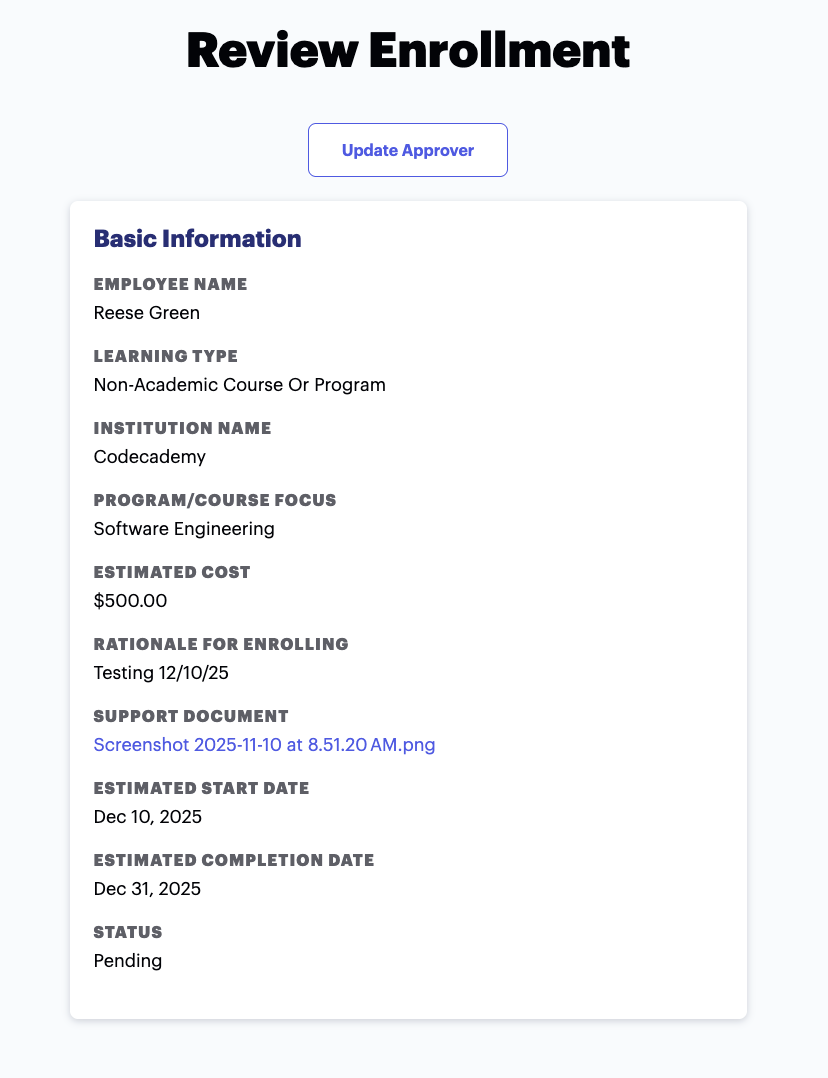
You can also click on each enrollment in the list to review its details and status. To expand the details, select the small arrow on the right-hand side. If needed, you can update the approver for a pending enrollment directly from the request.
Reimbursements Tab
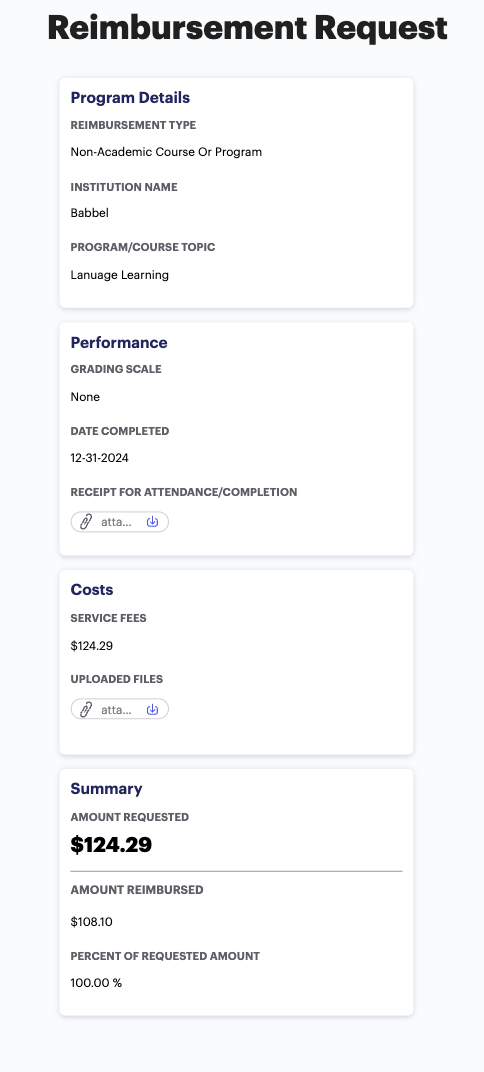
The Reimbursements tab displays all submitted reimbursement requests. You can filter, sort, and search by specific employees, just like on the Enrollments tab. To view a request, click the small arrow on the right-hand side to open the details. From there, you can also review any documentation the employee submitted with their request.
Metrics Tab
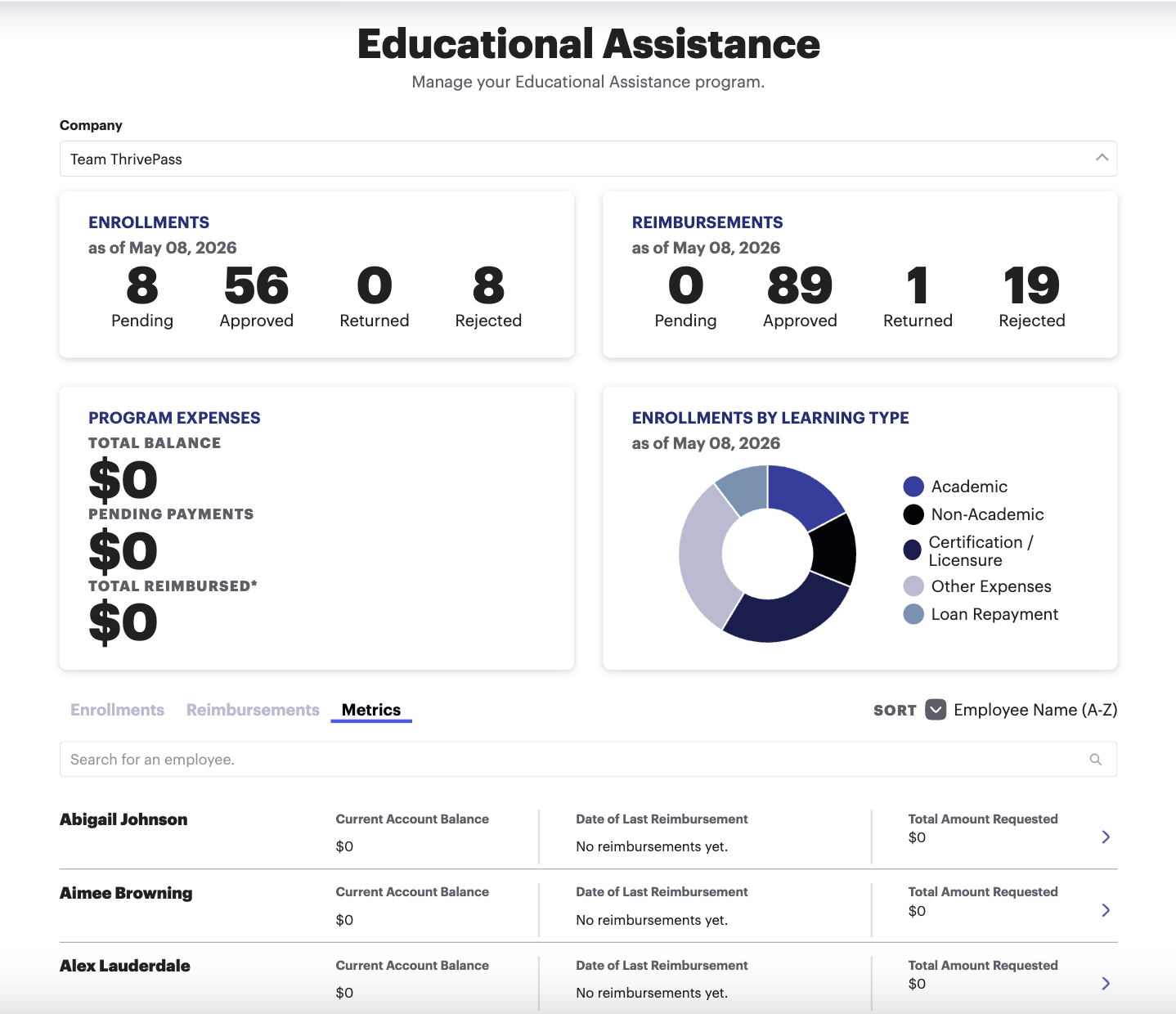
The Metrics tab provides a comprehensive overview of your program. It displays the number of enrollments and reimbursements along with their statuses, total program expenses, and the percentage of reimbursements by learning type. It also includes a breakdown of program usage by individual employee.
Was this article helpful?
That’s Great!
Thank you for your feedback
Sorry! We couldn't be helpful
Thank you for your feedback
Feedback sent
We appreciate your effort and will try to fix the article