Wishlist billing is managed through a Reserve Account. This means your account maintains a balance that is used to cover all activity on the platform.
Throughout the month, any charges—such as reward redemptions or software fees—are deducted from your Reserve Account. On the first business day of each month, you will be invoiced for the amount needed to replenish your balance back to your set Reserve Threshold (the minimum required balance).
How Do I Process Payments to Wishlist?
Wishlist uses Bill.com as a way to send electronic invoices to our clients. While you are prompted to create a bill.com invoice, creating an account is not required to process payments through Wishlist.
You will receive an initial invoice prior to launching on Wishlist to cover implementation fees and establish your Reserve. All invoices are due upon receipt.
How to Make Payments
Wishlist uses Bill.com to send electronic invoices and support payments.
- You do not need to create a Bill.com account to make a payment.
- Before your program launches, you will receive an initial invoicecovering:
- Implementation fees
- Your initial Reserve funding
All invoices are due upon receipt.
Available Payment Methods
You can pay your Wishlist invoice using one of the following methods:
ACH (Bank Transfer)
Option 1: Through Bill.com
- Connect your bank account and pay directly through the invoice
- Processing time: ~3 business days
- Fees may apply (managed by Bill.com)
Option 2: Through Your Bank
- Initiate an ACH payment using the banking details provided on your invoice
- Processing time: ~2–3 business days
- Check with your bank regarding any associated fees
Credit Card
- Pay directly through Bill.com
- Processing time: ~1 business day
- A 3% processing fee applies
Wire Transfer
- Send funds directly from your bank
- Processing time: ~1 business day
- Fees may apply (check with your bank)
To request wire instructions, contact your Client Success Manager or email billing@enjoywishlist.com.
Updating Your Reserve Threshold
To request a change to your Reserve Account minimum:
- Go to the Admin tab
- Open the Admin Dashboard
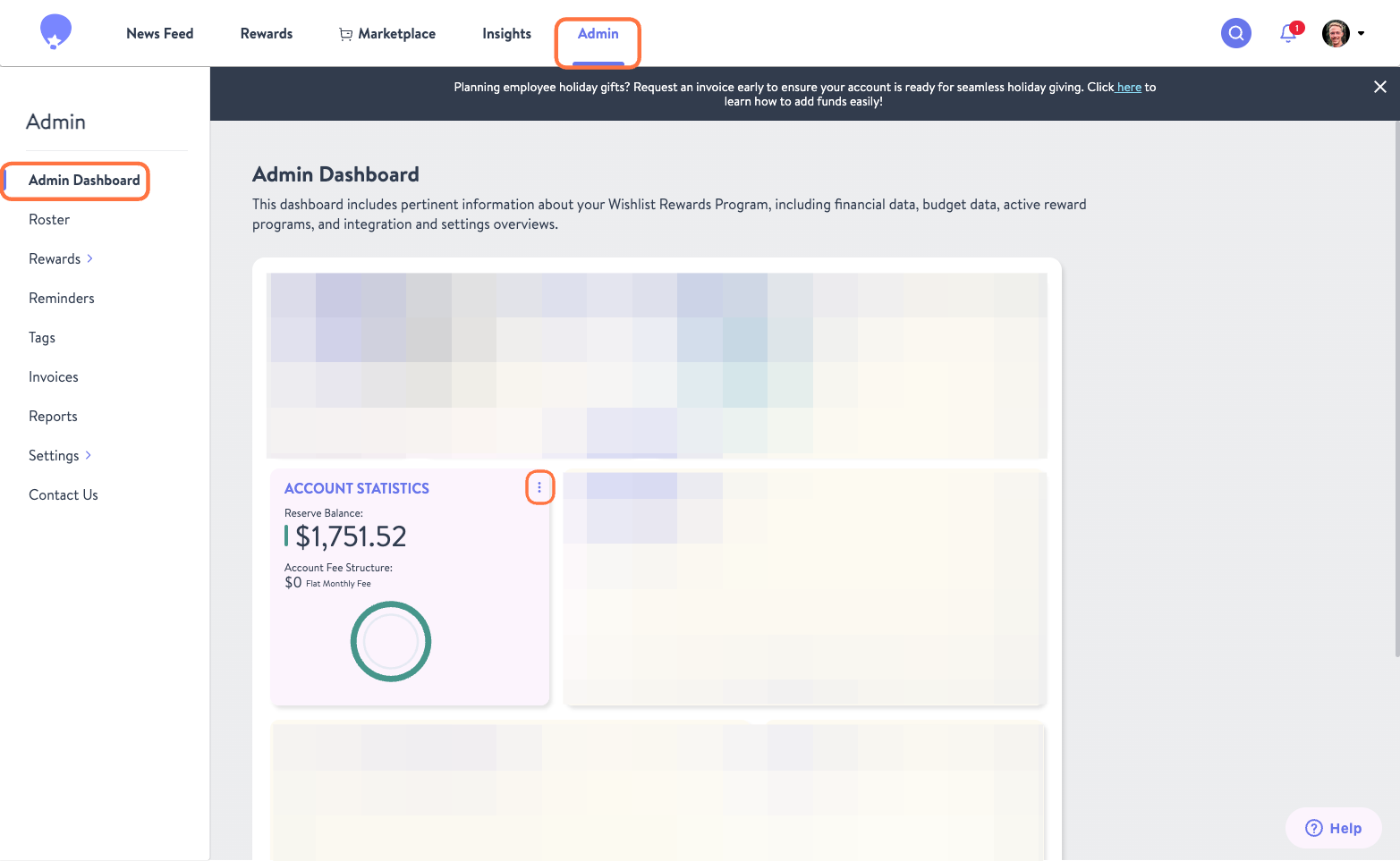
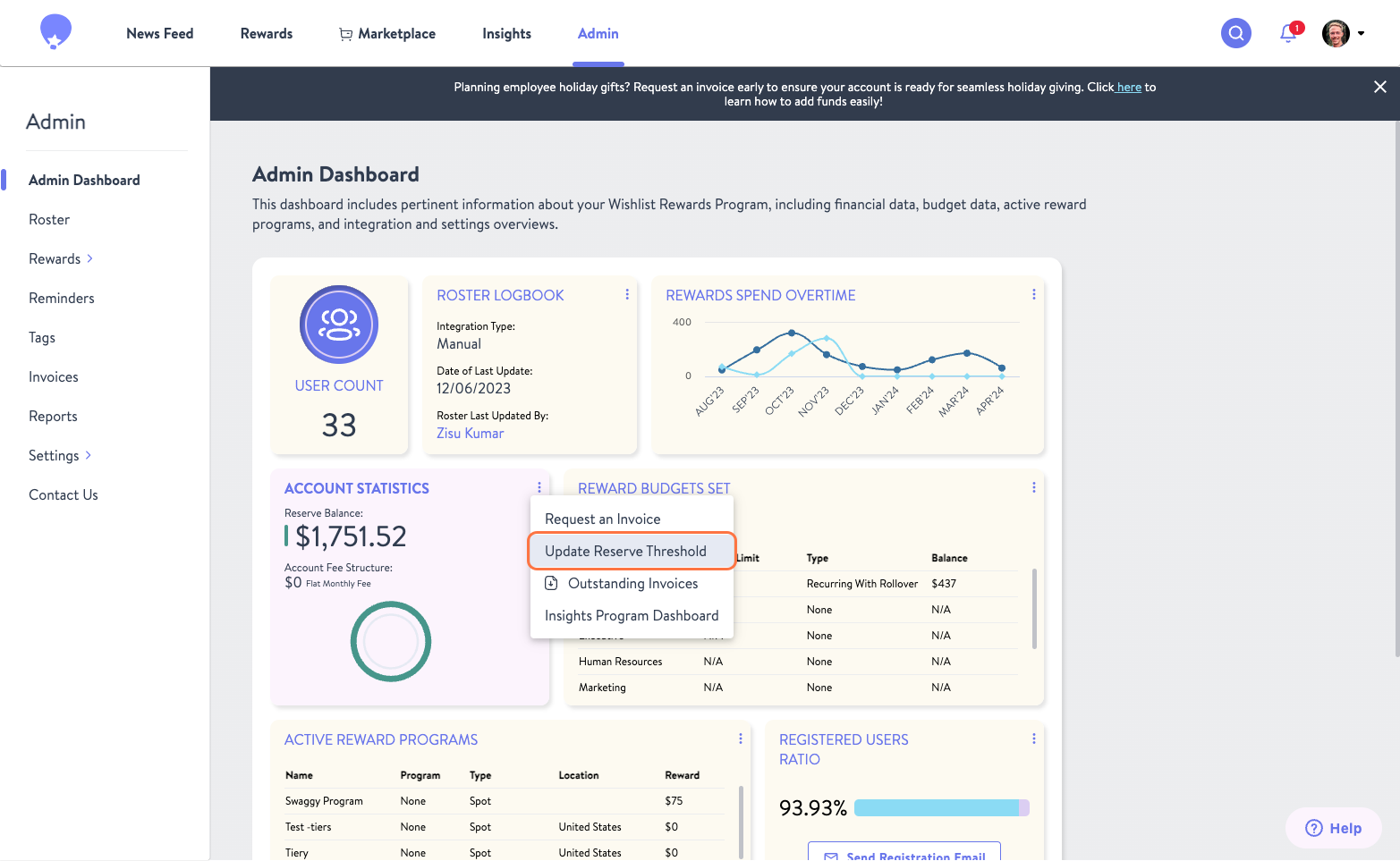
- In the Account Statistics tile, click the menu (⋮)
- Select Update Reserve Threshold
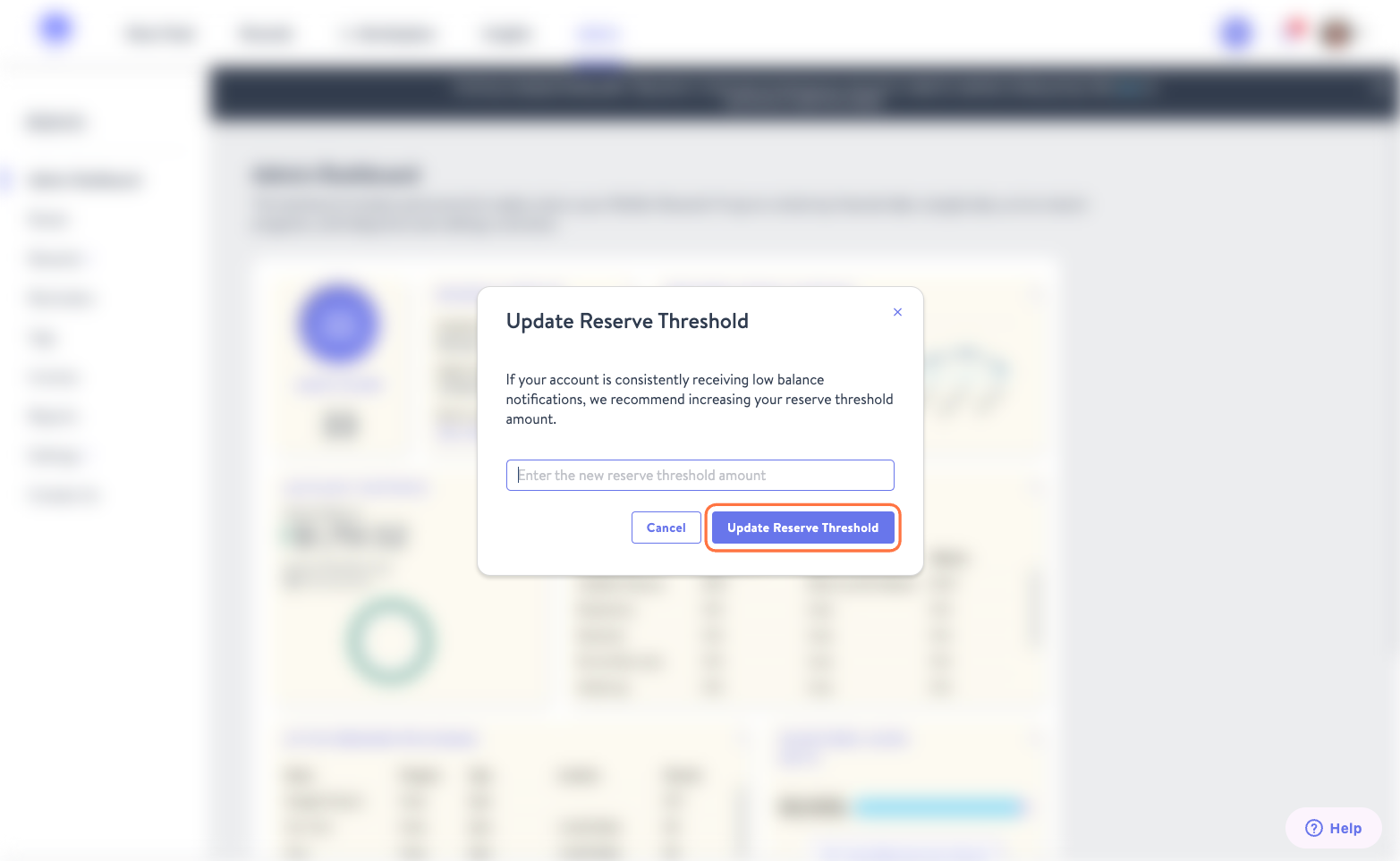
- Enter the new desired threshold (this should be the total amount, not an increase)
- Click Update Reserve Threshold to save
Additional Billing Details
Invoices are sent via Bill.com on the first business day of each month
Each invoice includes a monthly spend report, outlining:
- Reward transactions from the previous month
- Software fees
Program Admins can request additional invoices at any time through the Wishlist portal
If you need to adjust your Reserve Account or have billing questions, contact success@enjoywishlist.com.
Keeping your Reserve Account properly funded ensures uninterrupted reward sending and a smooth experience on the Wishlist platform.